This is the one feature with real setup involved, so this guide goes through it from zero. The reason is simple: to write while a mission is running, the tablet data has to reach PassthroughForge even though DCS owns the screen and the keyboard focus. Standard tablet drivers can't do that. OpenTabletDriver plus its OTD-IPC plugin can - and that's what the first half of this guide sets up. If you'd rather not install anything, jump straight to the phone over Wi-Fi alternative at the end; it needs no drivers at all.
Why a normal driver isn't enough
Your Wacom or Huion driver talks to Windows through an interface called WinTab. WinTab delivers pen data to the window that currently has focus. That works beautifully while PassthroughForge is the active window on your desktop - and stops the instant DCS goes fullscreen and takes focus. Which is, unfortunately, exactly when you want to write.
OTD-IPC solves this. It's a plugin for OpenTabletDriver that publishes the pen data over a named pipe instead of through the window system. A pipe doesn't care who has focus, so PassthroughForge keeps receiving your strokes with the headset on and the mission running.
| Vendor driver (WinTab) | OpenTabletDriver + OTD-IPC | |
|---|---|---|
| Drawing on the desktop | works | works |
| Writing during a mission | stops working | works |
| Setup effort | none | this guide, roughly 10 minutes |
PassthroughForge supports both and picks OTD-IPC automatically when it's available, falling back to WinTab otherwise. So if you only ever sketch masks at your desk, the vendor driver is fine and you can skip to step 6. For in-flight writing, carry on.
Remove your old tablet driver
🖹️ OpenTabletDriver- Uninstall your tablet driver the normal way: Settings → Apps → Installed apps, find the Wacom / Huion / XP-Pen entry, uninstall.
- Vendor drivers are notorious for leaving pieces behind. Run TabletDriverCleanup afterwards - a small tool that removes the leftovers properly. It covers 14+ manufacturers.
- Reboot. Genuinely required - some driver components only unload on restart.
Install OpenTabletDriver
🖹️ OpenTabletDriverOpenTabletDriver is a free, open-source replacement for the vendor driver. Download it, run the installer, and plug your tablet in.
⬇️ OpenTabletDriver
Official site with the Windows download and the installation wiki.
opentabletdriver.net📖 Windows install guide
The official step-by-step, including what to do if your tablet isn't detected.
opentabletdriver.net/Wiki/Install/WindowsWhen it starts, your tablet's name should appear in the dropdown at the bottom left of the window. Move the pen across the tablet - the little preview area should track it.
Install the OTD-IPC plugin
🖹️ OpenTabletDriverThis is the piece that makes in-flight writing possible. Good news: there's nothing to download by hand - OpenTabletDriver has a built-in plugin manager.
- In OpenTabletDriver, open the Plugin Manager.
- Find OpenKneeboard OTD-IPC in the list of available plugins.
- Click Install.
- Close the Plugin Manager.
Switch the filter on - Save and Apply
🖹️ OpenTabletDriverInstalling the plugin doesn't switch it on. You enable it per tablet:
- Pick your tablet in the dropdown at the bottom left.
- Go to the Filters tab.
- Tick OpenKneeboard in the filter list.
- Tick the box labelled Enable OpenKneeboard (OTD-IPC).
- Click Save and Apply.
- Own more than one tablet? Repeat for each one you want to use.
Create the Whiteboard mask
🖥️ At your PCDriver side done. Now over to PassthroughForge. The Whiteboard isn't a separate mask type - it's a page you switch on inside a DCS Kneeboard mask, so all your kneeboard pages live in one tidy place.
- Click Add Mask (Wizard).
- Under DCS AUTO-SOURCES, choose DCS Kneeboard, then Create.
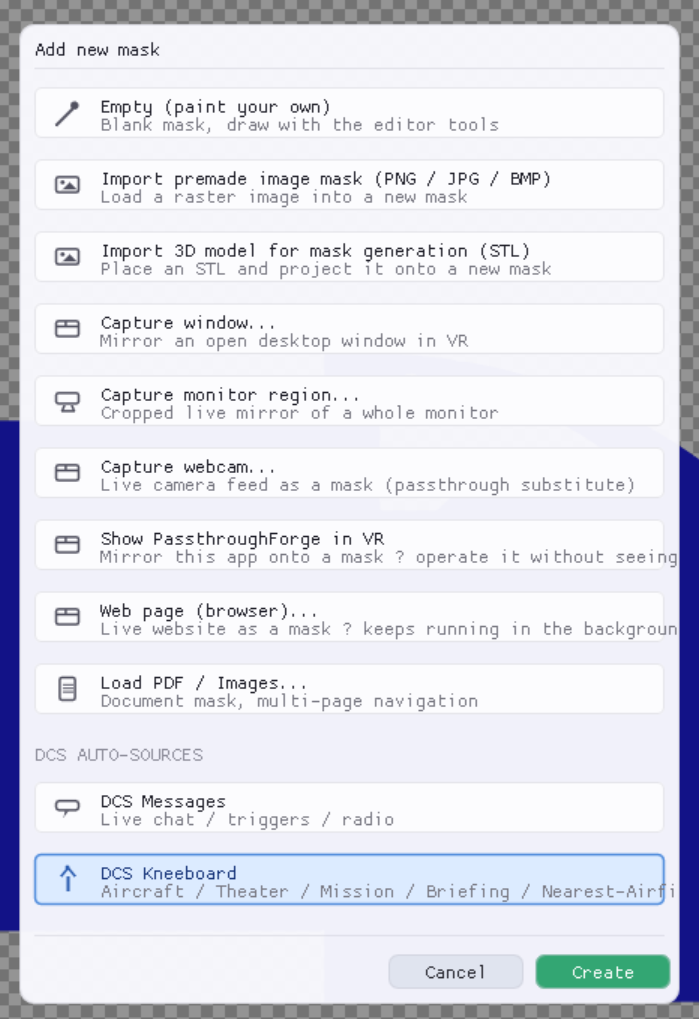
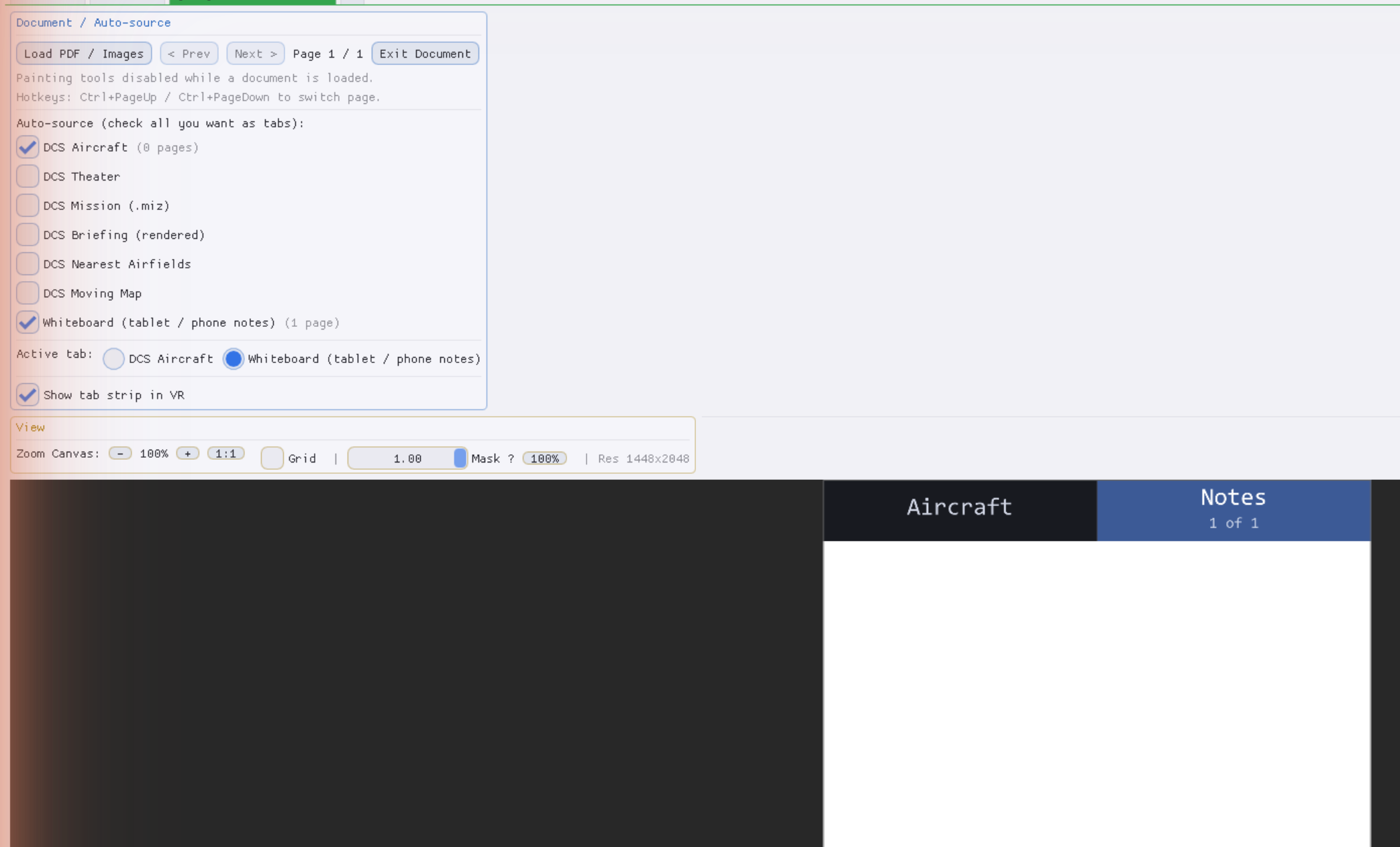
- The new mask opens with a list of sources. Tick Whiteboard (tablet / phone notes).
- Under Active tab, select Whiteboard (tablet / phone notes) - the mask now shows a Notes tab with a blank page. That's what your pen writes on.
Verify the connection
🖥️ At your PCOpen Settings → Tablet / Whiteboard. The line at the top tells you exactly where you stand:
| What it says | What it means |
|---|---|
| Connected: OpenTabletDriver | Perfect - this is the OTD-IPC path, the one that works in flight. The samples received counter below should climb as you move the pen. |
| Connected: WinTab | A vendor driver is answering instead. Fine at your desk, but it goes silent the moment DCS takes focus. PassthroughForge shows a warning here saying exactly that. Revisit steps 2-5. |
| No tablet detected | PassthroughForge wants the tablet but nothing is answering. OpenTabletDriver not running, filter not saved, or tablet unplugged. |
| Tablet free for OpenKneeboard | Not an error. There's no Whiteboard mask, so PSF is deliberately leaving the tablet alone. Go back to step 6. |
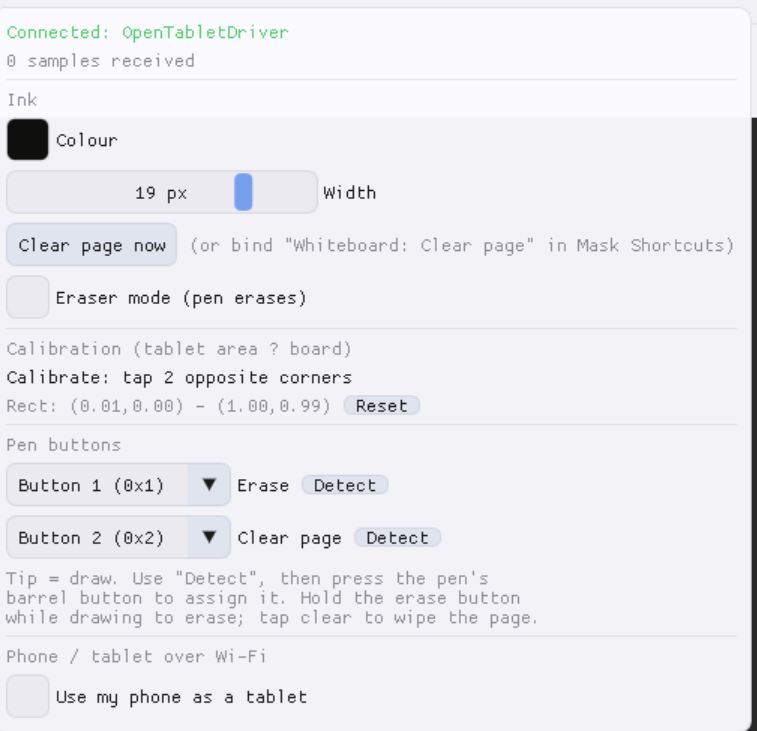
PassthroughForge re-checks every couple of seconds, so you can start OpenTabletDriver after the fact and watch the status flip to Connected: OpenTabletDriver on its own.
TabletInput (OTD-IPC): started is the good
case, TabletInput: WinTab opened is the focus-bound one. Help → Report a
problem sends it along automatically.
Calibrate the pen area
🖥️ At your PCCalibration tells PassthroughForge which part of your tablet maps to the board. Most tablets are a different shape than your kneeboard page, and you probably don't want the far edges to count anyway - so you mark out a rectangle by tapping two opposite corners.
- In Settings → Tablet / Whiteboard, click Calibrate: tap 2 opposite corners.
- A prompt appears: Tap the TOP-LEFT corner of your tablet with the pen. Tap it - and lift the pen between the two corners.
- The prompt switches to BOTTOM-RIGHT. Tap that.
- Done - the rectangle is saved with your profile. The line underneath shows the stored values, and Reset puts them back to the full tablet area.
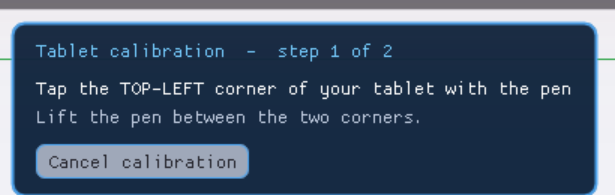
Tap firmly enough to register a proper pen-down, and lift the pen in between - the two taps have to be separate strokes. Anywhere inside that rectangle now maps onto your board; the region outside is ignored.
It's also a useful signal: with OTD-IPC properly active the cursor wouldn't move at all, so this tells you step 5 didn't take. Fix that and the problem disappears. Need a quick workaround right now? Turn off Settings → Personalisation → Taskbar → Taskbar behaviours → "Select the far corner of the taskbar to show the desktop".
Ink, eraser and pen buttons
🖥️ At your PCSame menu, everything else you'll want:
- Colour and Width (1-24 px) - your ink. Saved with the profile.
- Clear page now - wipes the board to a clean sheet.
- Eraser mode (pen erases) - strokes paint white instead of drawing. Works on any pen, including ones with no eraser end.
Reaching for the mouse mid-flight defeats the point, so bind the two you'll actually use. Under Pen buttons you can assign the barrel buttons on your pen: click Detect next to Erase or Clear page, then press the button you want. Hold the erase button while drawing to rub out.
Place the board in VR
🥽 In VRFrom here it's an ordinary mask, so the usual placement workflow applies - with one twist worth thinking about: put the board where your pen hand already is. If the tablet sits on your right thigh, the board wants to be roughly above it. Writing feels natural when your eyes and your hand agree about where the page is.
- Headset on, switch on Trace VR.
- Look at the spot you want and hit Face Me for the rough placement.
- Nudge it into place with the position and tilt shortcuts, then save the profile.
Full detail on Face Me, the X/Y/Z nudges and tilt/roll lives in Import a Pre-Made Mask - the alignment half of that guide applies unchanged here.
Sharing the tablet with OpenKneeboard
🖥️ At your PCWorth knowing up front: OTD-IPC serves one program at a time. That's a property of the plugin, not something either application can work around. PassthroughForge and OpenKneeboard can't both hold the pen at once.
PassthroughForge tries to be a good neighbour about it. It claims the tablet only while a Whiteboard / Notes mask exists and releases it otherwise - which is what Tablet free for OpenKneeboard in the status line means. In practice:
- Writing in PassthroughForge? Keep a Whiteboard mask, and close OpenKneeboard or let it start after PSF has the pipe.
- Using OpenKneeboard for the tablet? Delete the Whiteboard mask (or untick the source). PassthroughForge lets go immediately - all your other masks keep working exactly as before.
Everything else in PassthroughForge is completely unaffected - this only concerns the pen.
No tablet? Use your phone
🖥️ At your PCIf you don't own a graphics tablet - or you'd rather not touch drivers at all - PassthroughForge can take ink from your phone or tablet over Wi-Fi. No drivers, no plugin, nothing to install.
- In Settings → Tablet / Whiteboard, tick Use my phone as a tablet.
- PassthroughForge shows an address and a QR code. Scan it, or type the address into your phone's browser.
- Draw on the phone with your finger or a stylus - the ink lands on the Whiteboard mask in VR.
Both devices need to be on the same network. Access is protected by a token in the address, and you can regenerate it or change the port from the same menu. It's focus-independent by nature, so it works in flight just like OTD-IPC does.
Troubleshooting
| Symptom | Cause & fix |
|---|---|
| Works at the desktop, dead in flight | You're on WinTab. The status line should read Connected: OpenTabletDriver, not Connected: WinTab. Work back through steps 2-5. |
| Cursor still follows the pen | The filter isn't active, or a vendor driver survived. With OTD-IPC on, the cursor must stay put. Re-check the tick and that you pressed Save. |
| OpenTabletDriver says "No tablet detected" | Leftover vendor driver holding the device, a power-only USB cable, or a Bluetooth connection (not supported). Run TabletDriverCleanup and reboot. |
| Status shows "Tablet free for OpenKneeboard" | Working as designed - no Whiteboard mask exists. Create one (step 6). |
| Setting is gone after a reboot | Only Apply was pressed, not Save. Set it again and press both. |
| PSF minimises during calibration | Pen is still driving the cursor and hits the taskbar's Show desktop corner. See the warning in step 8. |
| Ink appears but in the wrong spot | Calibration rectangle is off. Run Calibrate again, or hit Reset for the full tablet area. |
| Nothing at all, and OpenKneeboard is running | OpenKneeboard has the pipe. Close it and watch the PSF status line flip within a couple of seconds. |
Still stuck? Post in the Discord or use Help → Report a problem in the app - that sends the log along, which shows exactly which backend was picked and why.