PassthroughForge

Where reality breaks through.

PassthroughForge cuts custom-shaped windows into your VR view - exactly where your real HOTAS, keyboard, knee-board or coffee mug sits. Switch profiles in one click and you're rigged for any cockpit.

Full feature overview — every PassthroughForge tool in one walkthrough

Settings & tabs deep-dive — every option in every tab explained

Compatible with:
META QUEST 3 AND VIRTUAL DESKTOP

Get reality into your VR games.

Every VR pilot knows the moment: you need to adjust a real-world control mid-flight - a switch on the HOTAS, a key on the keyboard, a glance at the knee-board - but reaching it accurately means lifting the headset and breaking immersion. The result: you either fly blind to your own hardware, or you trade the VR experience for a quick peek at reality. PassthroughForge removes the trade-off.

Before

  • Headset on: HOTAS and keyboard invisible
  • Headset off: VR immersion gone
  • Pancake mode = half the experience
  • Hunting for buttons by feel or voice macros

With PassthroughForge

  • HOTAS, keyboard and mouse always visible
  • VR cockpit stays fully immersive
  • Cutouts placed exactly where your gear is
  • One profile per aircraft - one click to switch
Why a dedicated tool

Built for mixed reality. Nothing else.

The wider OpenXR community has been clear about what a great mixed-reality tool needs to look like: a dedicated OpenXR API layer + configuration app, free of unrelated kneeboard or overlay logic, focused entirely on bringing reality into VR. That's not a side feature you bolt onto a kneeboard tool - that's its own product. PassthroughForge is built exactly to that spec.

Chroma-key composition layers

The Virtual Desktop pipeline that makes most consumer passthrough setups work today. Our core, since day one.

Composition layers locked to controllers

Real-time controller tracking welds any cutout to a Quest 3 controller. Switch a mask from World and it keeps its current placement (no jump) — ideal for a controller mounted in your cockpit, handheld panels, or motion-rig setups where the cockpit physically moves with you.

Live window-capture composition layers

Built-in Windows.Graphics.Capture pipeline streams any open desktop program straight into a VR mask at up to 120 Hz. No DIY webcam rig required.

Live in-sim data integration

A 30-line Lua hook in DCS forwards chat, trigger texts and AI radio over loopback UDP straight onto an A4 kneeboard mask. Never miss a 9-line, BRC, or wingman call. Loopback only - nothing leaves your PC.

PDF & multi-page kneeboard

Drop a PDF or image series onto the editor and it becomes a paged VR panel with rebindable next/previous shortcuts (defaults Ctrl+A / Ctrl+D). Color Anti-Bleed keeps photo content readable against the chroma key.

Dedicated configuration tool

A focused desktop UI for designing, mirroring, and persisting mask layouts per aircraft — separate from your sim, runs in the background while you fly. Tray-mode keeps every shortcut live behind DCS via a low-level keyboard hook.

Stream Deck profile included

One-touch buttons for mask toggle, recenter, profile swap, page next/previous and Trace VR — no scripting required. Hand-built profile shipped on the website, ready to import.

Native passthrough extensions

XR_FB_passthrough (Quest Link, Pico 4), XR_HTC_passthrough, and XR_ENVIRONMENT_BLEND_MODE_ALPHA_BLEND for Varjo / SteamVR users who don't run Virtual Desktop. On the roadmap.

Curved overlay regions + true head-locked layers

Cylinder-shaped masks via XR_KHR_composition_layer_cylinder and motion- compensated head-locked HUD elements via XR_REFERENCE_SPACE_TYPE_VIEW. Planned.

How it works

PassthroughForge sits transparently between your sim and your VR runtime as an OpenXR API layer. You decide where reality breaks through.

Feature #1 - Mask Creation

Four ways to make a passthrough window. Pick the one that fits.

Whether you have a perfect cockpit screenshot, want to draw on the fly, or just need a quick rectangle - PassthroughForge gives you four ways to cut a passthrough window into your VR view. Use them on their own or mix them in the same profile.

  • Use a ready-made preset - load one of the included mask templates (HOTAS, MFD, kneeboard, full-screen) and drag it into position. Zero drawing required.
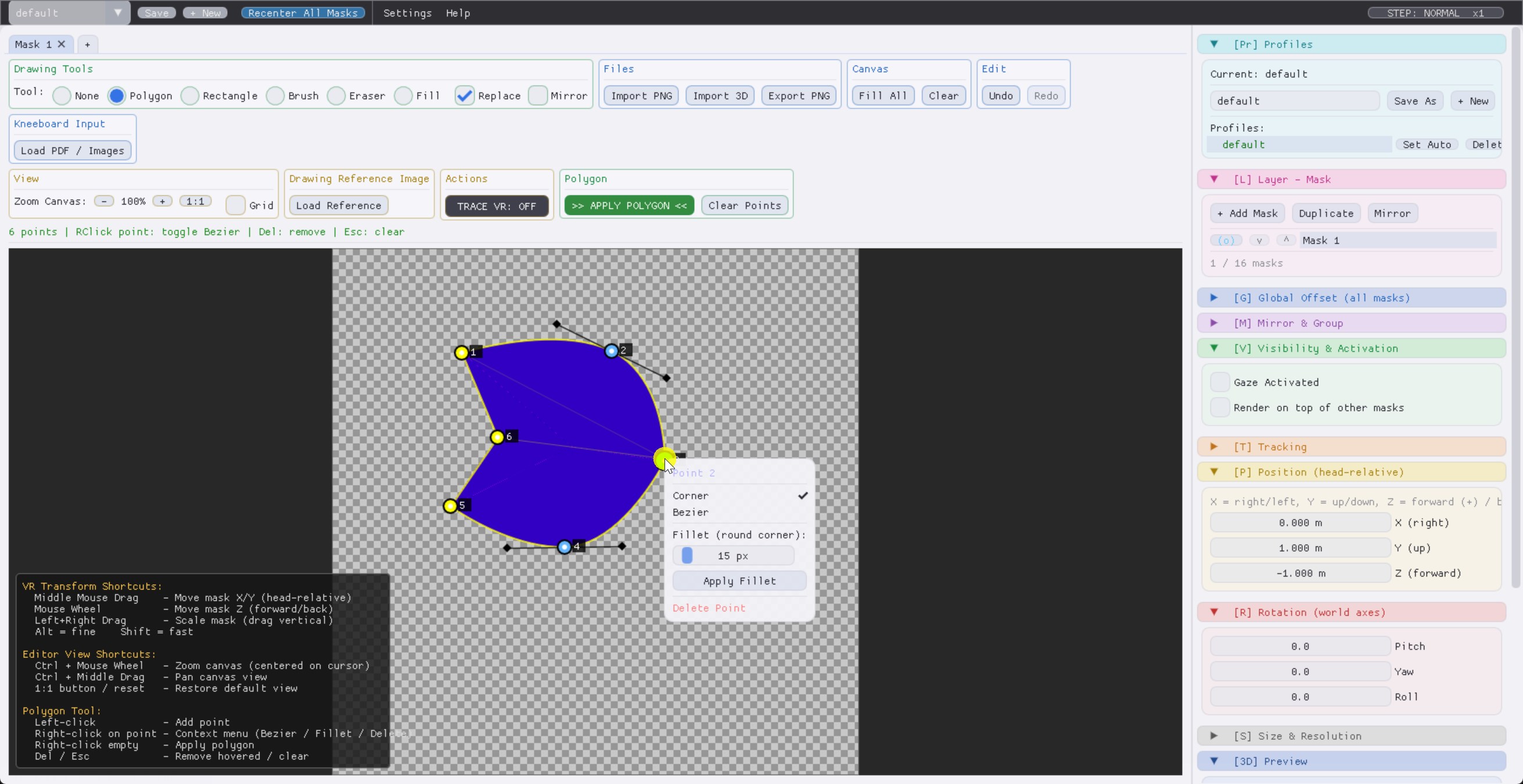
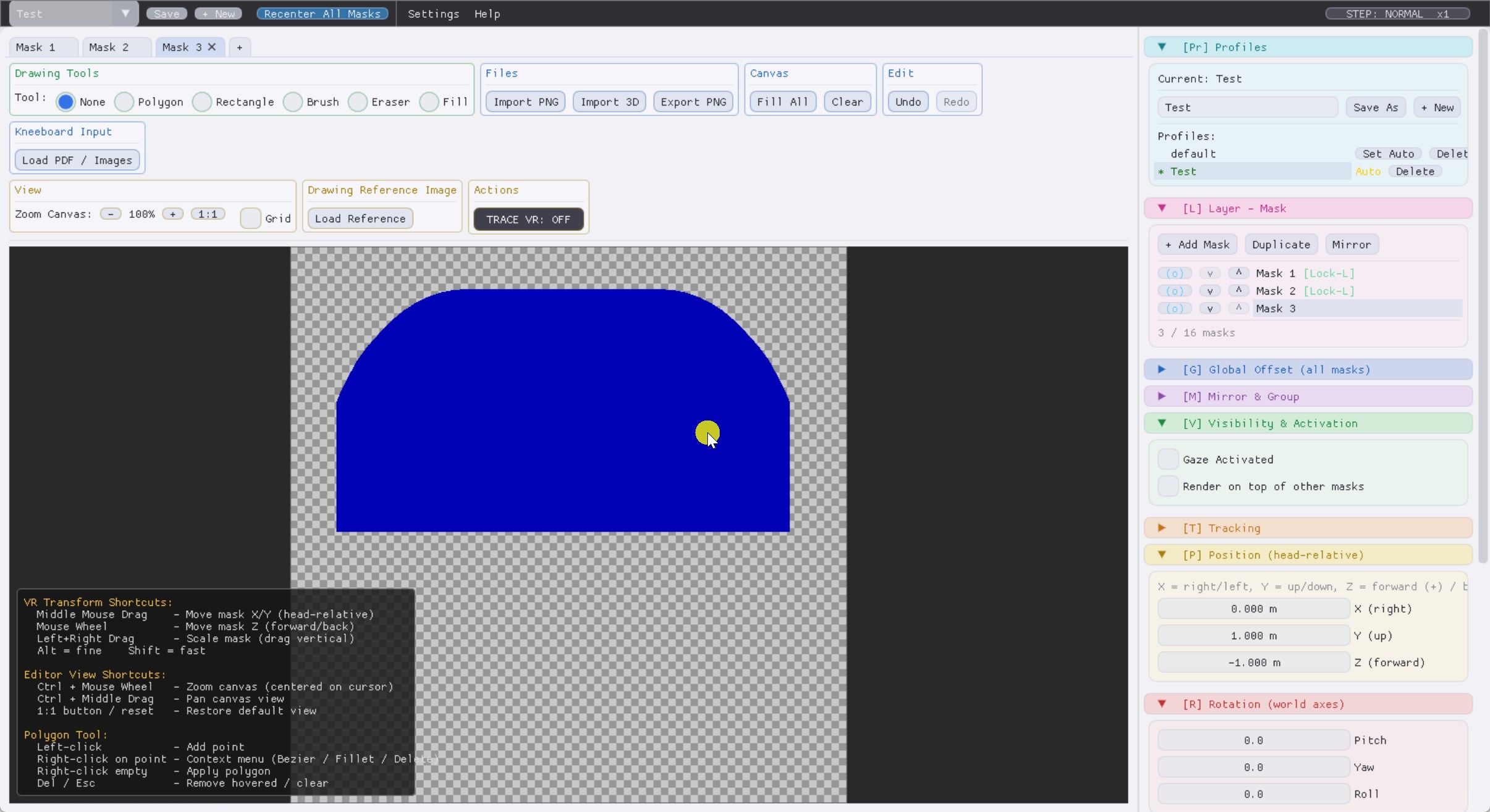
  • Polygon mode - click the corners of your window one by one. Drag the points later to fine-tune, add bezier handles for smooth curves, fillet the corners. The most precise option.
  • 2D Draw mode - drop a Load Reference image (a screenshot or photo of your cockpit) onto the canvas and trace your polygon right over it for a pixel-precise fit. Or skip the reference and just paint freehand with the brush, or drop a rectangle in seconds. Quick and intuitive.
  • VR Draw mode - put on the headset, turn on Trace VR, and shape the cutout right on top of your real cockpit with the polygon tool. The fastest way to get the shape exactly right where you actually need it.
Four mask creation modes side by side
Feature #2 - Mask Editor

Polygon, rectangle, brush. You shape every cutout.

The 2D editor lets you draw the exact contours where your VR image should turn transparent. Bezier curves for smooth edges, live mirroring for symmetric layouts, reference images so you can trace right over a cockpit photo.

  • Polygon tool with bezier handles + fillet radii
  • Rectangle and brush tools for fast freehand shapes
  • Load a reference image (e.g. a cockpit photo) and trace it
  • Pre-made mask presets you can load and adjust
  • Live Trace mode: highlights your shape in VR as you align it
Mask Editor with polygon tool
Feature #3 - Profiles

One profile per aircraft. One click to switch.

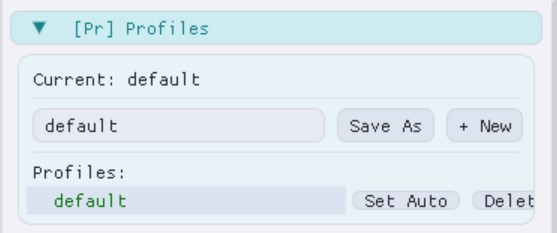
Build a layout once, save it under any name, load it whenever you fly that bird. Each profile holds the full mask geometry, positions, gaze settings, and group offsets - independent of any in-session recenter you might do later.

  • Unlimited profiles, freely named
  • Auto-load on application start
  • Profile data stays untouched no matter how often you snap to view
  • "+ New" creates an instant snapshot of your current layout
Profile panel
Feature #4 - Snap to View

Recentered the playspace? One key and everything sits right.

When the VR runtime re-anchors your stage origin (Oculus button, Virtual Desktop reset, headset off and on again), the whole mask group ends up pointing the wrong way. Hit Ctrl+Delete and PassthroughForge rotates the entire group rigidly around your head until the centroid sits straight in front of you again - all relative spacing between masks stays exactly as you built it.

  • Rigid yaw rotation around your head as pivot
  • All inter-mask distances and angles stay pixel-exact
  • Reset Snap reverts everything to the loaded profile
  • Works in tray mode through the global keyboard hook
Feature #5 - Document Mask

Knee-board with PDFs, charts, briefings.

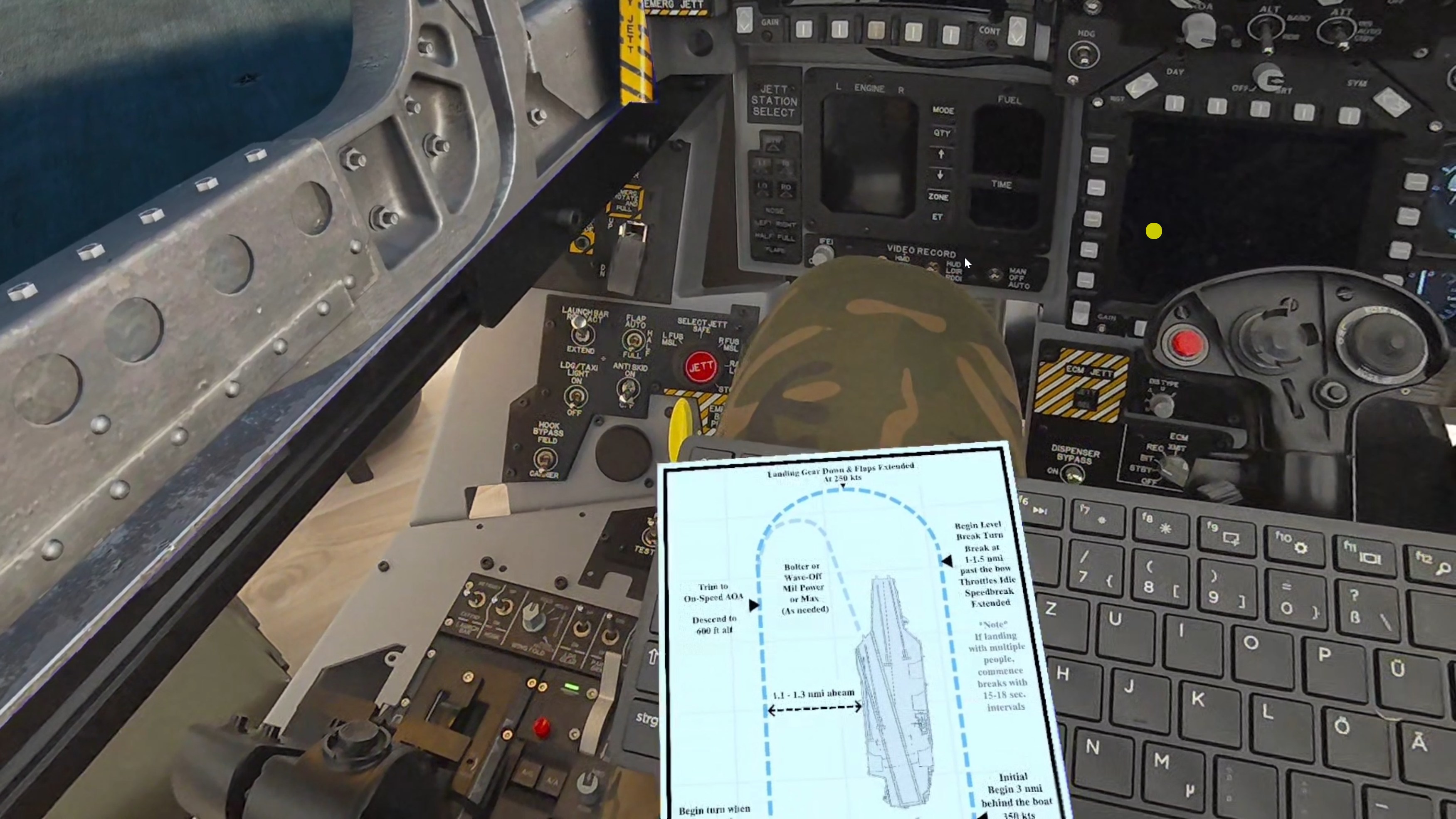
Load approach charts, mission briefings or system diagrams as PDFs or image series. PassthroughForge turns them into floating VR panels - paged, freely positioned, and immune to chroma-key bleed thanks to a built-in Color Anti-Bleed pass. Document panels can be placed on top of your existing passthrough windows - drop a checklist over your real throttle, overlay an approach plate on the windscreen cutout, stack a kneeboard above a hardware MFD - the document layer renders on top so it stays readable no matter what's behind it.

  • Read PDFs and JPG/PNG sequences
  • Page navigation via hotkey or controller
  • Color Anti-Bleed: no flicker on photo content
  • Render-on-top mode: document overlays stay above any existing passthrough window
Approach chart as VR panel
Feature #6 - Controller Tracking

Bind a mask to a motion controller. Built for motion rigs.

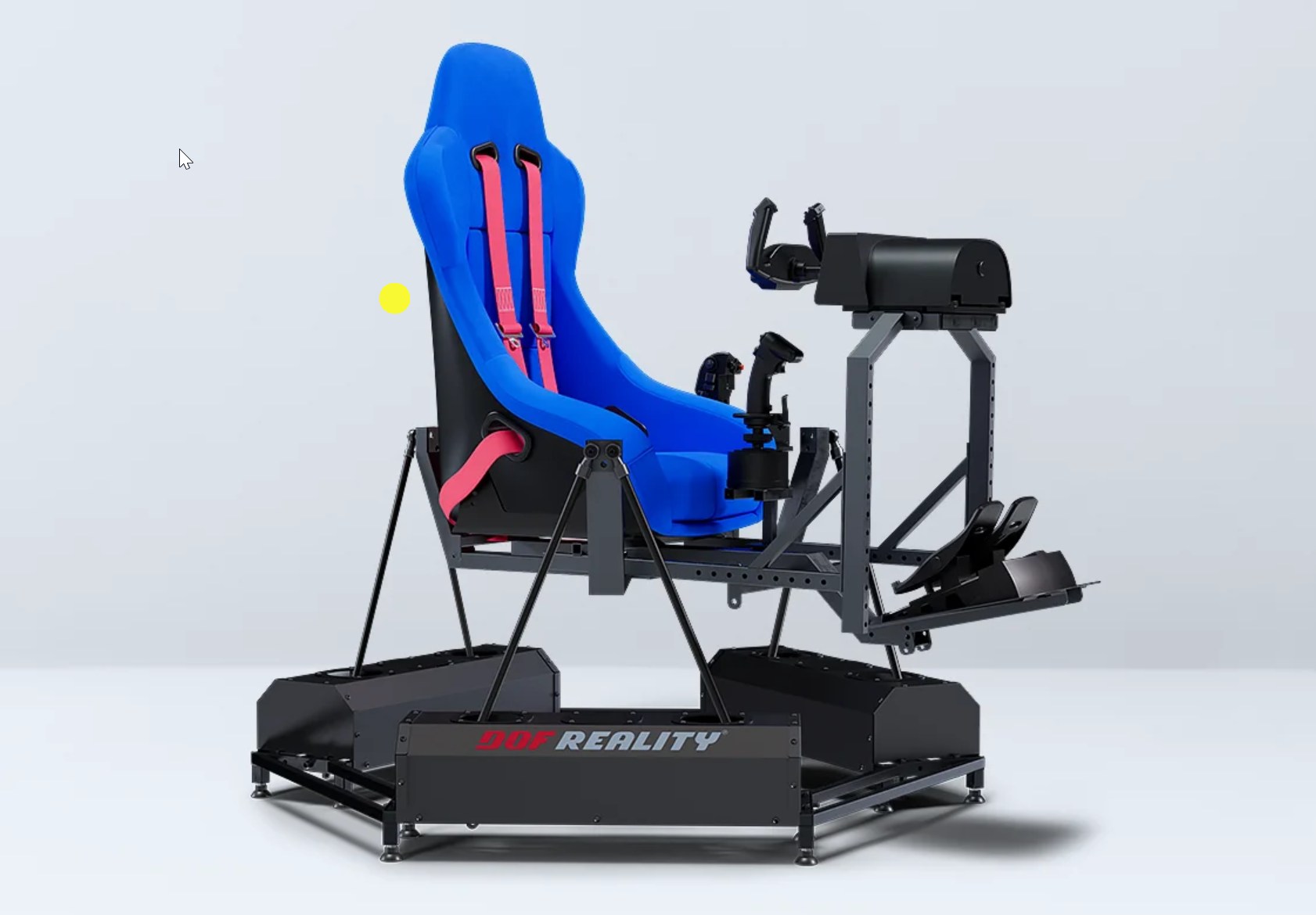
Any mask can be attached to your left or right Quest 3 controller - the cutout follows the controller's pose in real time. Beyond handheld use, this opens up an interesting workflow for motion rig owners: strap a controller to your rig frame and the masks track every pitch, roll and yaw the motion platform produces. No more drift between your real cockpit panel and its VR cutout when the rig moves.

  • Per-mask tracking target: None / Left / Right controller
  • 6DoF tracking - position and orientation follow exactly
  • Snap-to-controller pose for one-click placement
  • Ideal for motion simulators where the cockpit physically moves
  • Mix and match: world-anchored masks + controller-tracked overlays
Controller-tracked mask following motion rig
Feature #7 - Window Capture

Stream any open window into VR. Live, in 30 Hz.

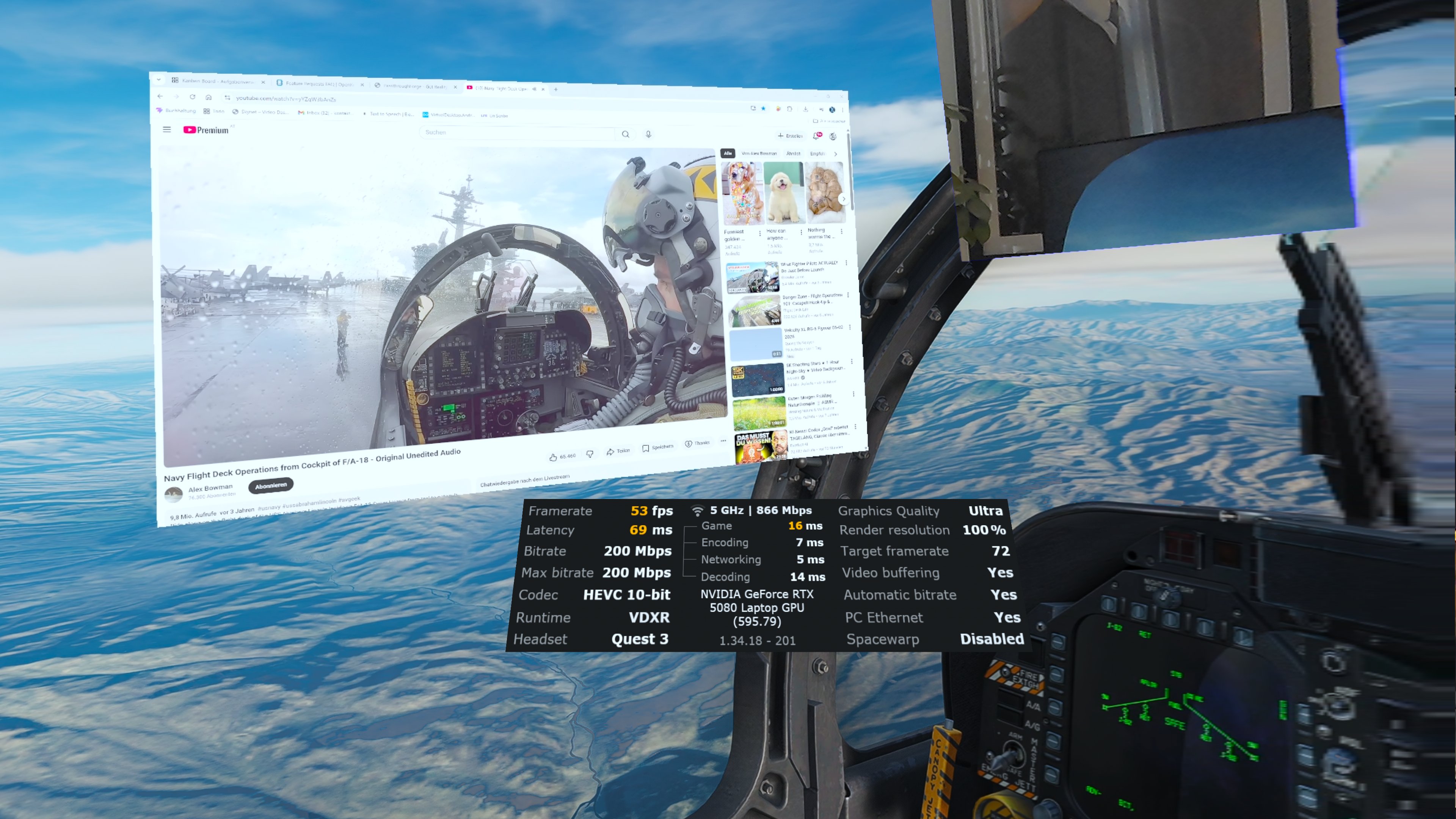
Pick any open Windows program - a browser tab with a YouTube video, a navigation chart in your favourite EFB app, a Twitch chat, an OBS browser source, your discord call, anything that runs on your desktop - and PassthroughForge places it as a live updating mask in your cockpit. The mask refreshes ~30 times per second (configurable up to 120 Hz), so videos, animations and interactive content all stay smooth.

  • Picker with thumbnails - one click on "+ Window..." opens a list of every open window with a mini preview. Pick the one you want and a new mask appears in front of you.
  • Auto-reconnect on launch - the window's title is saved in your profile. Next time you open the same browser page or app, the mask binds back to it automatically. No re-picking required.
  • Aspect ratio preserved - whether the source is 16:9, 4:3 or portrait - the mask matches it. No squished content.
  • 4K-aware - sources up to 4K get downscaled cleanly to 2048 px max so you can stream a 4K monitor without tanking DCS frame rate.
  • "Window not found" placeholder - if you close the source window, the mask shows a clear placeholder pattern instead of going invisible. Reopen the window and capture resumes within two seconds.
  • Same controls as drawn masks - position, rotation, size, controller-tracking, mirror - everything works exactly the same. A streamed window is a regular mask that happens to update its content automatically.

Use cases: floating reference videos, live-updating charts, remote monitoring panels, Discord overlay, MFD content from external EFB software, and anything else that already runs on your desktop.
Window Capture - YouTube video as a floating VR mask
Feature #8 — DCS Messages

Never miss a 9-line, BRC, or wingman call again.

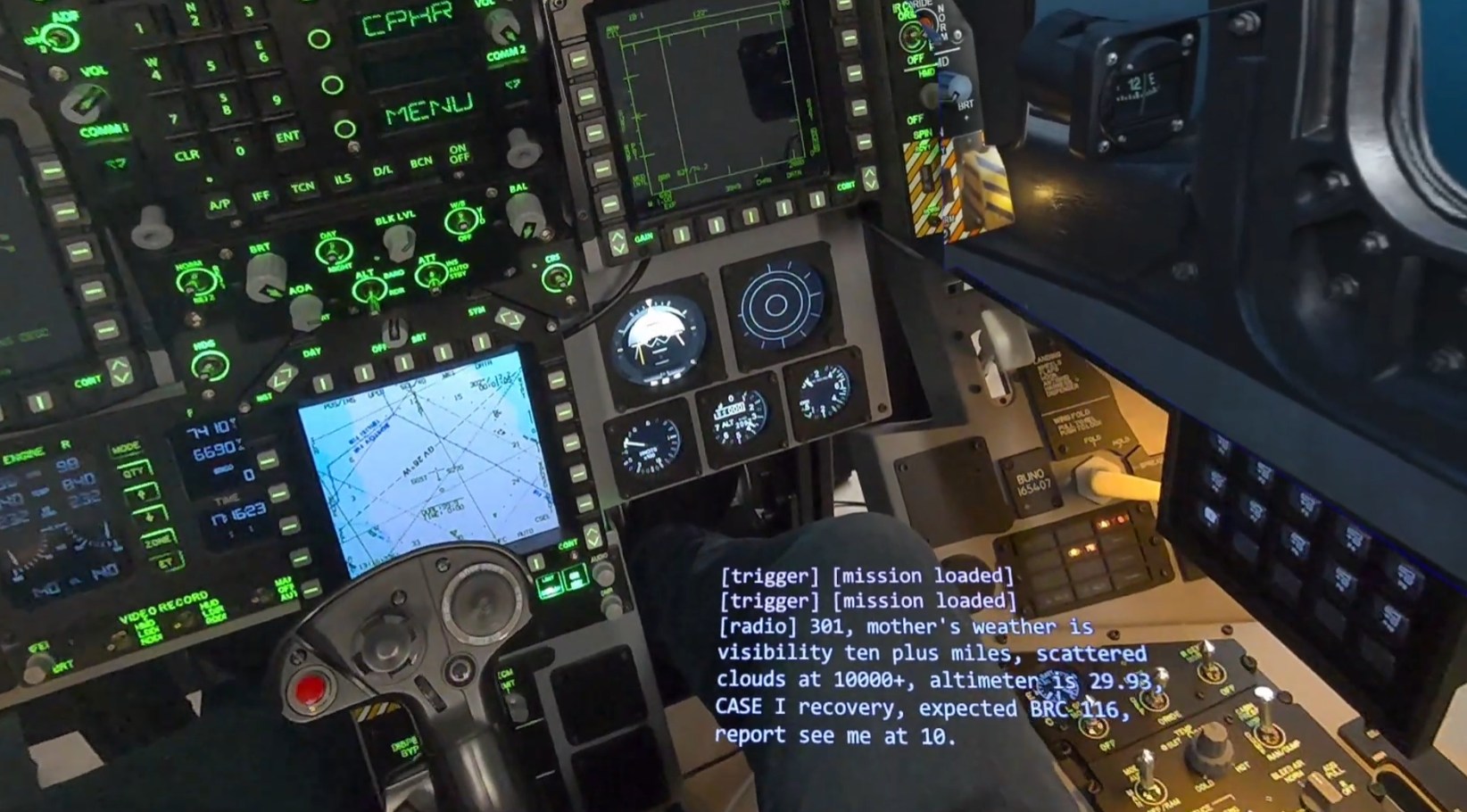
DCS broadcasts a lot of information you're expected to memorise on the fly — CAS 9-lines, JTAC follow-up, the carrier's BRC and tower frequencies, ATIS, mission trigger texts, multiplayer chat. PassthroughForge can pin all of that to a virtual A4 kneeboard floating exactly where you want it, so you can glance over instead of trying to remember.

  • Live message log — chat, mission triggers and AI radio appear within milliseconds of DCS firing them. Older entries scroll up; newest stays at the bottom like a comms window.
  • Player-only filter — your own outbound radio calls are hidden, so the panel only shows traffic that's actually directed at you. No more wading through your own transmissions to find the JTAC's response.
  • Colour-coded sources — chat in light blue, mission triggers in amber, radio in green. One glance tells you whether it's a wingman, a system message, or ATC.
  • Free placement — spawn it as a regular kneeboard-sized panel (real A4, 21×30 cm) and put it anywhere — on your real knee, on the dashboard, taped to the canopy. Same shortcuts and tracking modes as every other mask.
  • Zero network exposure — messages are forwarded over loopback only (127.0.0.1:31090). Nothing leaves your PC, no firewall rule needed.
  • One-click install — the v2.46 installer drops the DCS Lua hook into every Saved Games\DCS*\Scripts\Hooks\ folder it finds. Manual install is a single file copy, fully documented in the manual.

Built for the players who'd rather fly the jet than juggle a notepad. Especially handy on the Hornet boat traps, BFM in flights of four, and any mission with chatty JTACs or multi-step trigger texts.

DCS Messages mask showing recent radio calls
Feature #9 — Screen Region Capture

Pull any part of your desktop straight into VR.

Sometimes the panel you need isn't in the cockpit and isn't a whole window either — it's a small region of your desktop. A DCS DDI you exported to a second monitor, a single MFD pop-out, the Mission Editor briefing pane, a TacView replay corner, a YouTube tutorial running in a browser tab. Region Capture lets you draw a rectangle around any part of any monitor and stream those pixels live into a VR mask.

  • Any monitor, any rectangle — pick a display from the list, then drag a selection box over the exact area you want. The capture follows that rectangle even if the underlying window is resized or moved.
  • Full-resolution GPU pipeline (v2.63 quality boost) — pixels go to the GPU at native source resolution and are downscaled there with bilinear filtering. No staircase artefacts on lines or text even when the VR mask is smaller than the captured region.
  • 60 Hz default refresh — high enough for smooth animations and live video panels. Adjustable from 5 Hz (static documents, zero CPU cost) up to 120 Hz (high-motion content).
  • Built on Windows Graphics Capture (WGC) — the same modern API used by OBS and Game Bar. No window focus theft, no flashing yellow capture border, no interference with the source app.
  • Persisted in profiles — the monitor index + rectangle coordinates are saved alongside every other mask property. Auto-reconnects on the next launch as long as you haven't unplugged the monitor.
  • Independent of Window Capture — uses a separate creation path (+ Region… button next to + Window…) so you can have both kinds of capture masks in the same profile.

Particularly useful in DCS for exporting MFD/DDI displays from the multi-display setup, in MSFS for cropping out single instruments from a popped-out cockpit, and for any workflow where the exact pixels you need don't line up with a single window.

Feature #10 — DCS Auto-Kneeboard

The kneeboard, rebuilt for mixed reality — it fills itself in.

Every other kneeboard solution makes you manage pages by hand: drop images in folders, switch tabs, re-point things every time you change aircraft. PassthroughForge does the opposite. Point a mask at a DCS content source by ticking a checkbox, and it populates and refreshes itself — the moment DCS tells it which jet you're in, which theatre loaded, which mission is running. Because PassthroughForge owns both a dedicated mixed-reality compositor and a live DCS hook, it can do things a document-viewer simply can't.

  • Four auto-sources, zero file juggling. Aircraft pulls your jet-specific charts from the standard DCS kneeboard folders. Theater scopes to the loaded map. Mission unzips the active .miz on the fly and surfaces the pages the mission designer baked in. Briefing is rendered live — not a screenshot, actually composed.
  • One panel, every source, switched with a thumb. Tick several sources and the mask grows a tab strip in VR with a live "page X of N" counter per tab. Bind hat-Left/Right to cycle tabs, hat-Up/Down to flip pages — the entire reference library on one cockpit panel, navigated without lifting the headset.
  • The briefing actually reads like a briefing. Sortie, your flight's callsign and radio, bullseye, the full numbered waypoint list with altitudes and speeds, AI assets (AWACS / tankers / CAP with frequencies), tasking, and weather — parsed from the mission and laid out as clean, paginated pages. Optionally a full enemy Threats list (SAM / AAA / MANPAD, NATO-named, bullseye bearings), grouped by engagement range. Nothing to export, nothing to screenshot.
  • Profiles that follow your jet. Tag a profile with an aircraft and slotting into that jet — even mid-mission, even multiplayer — auto-loads the entire mask layout for it. Hornet panel set, then hop in the Hog and the whole cockpit reconfigures itself. One trigger, zero clicks.

Built from the ground up as an OpenXR layer + a desktop configurator with a loopback DCS hook — the architecture the mixed-reality use case actually wants. The result does everything you'd expect a kneeboard tool to do, and then keeps going.

Feature #11 - Moving Map

A live moving map on your kneeboard — friendlies and enemies, every theater.

The integrated DCS Moving Map scrolls a real terrain chart under your aircraft — north-up, centered on you — with labelled airfields (TACAN / ILS / runway) and your planned flight-plan drawn as a line with numbered waypoints.

  • Friendly (blue) units — live ships, carriers and aircraft, each with a compact data label: name, ground speed, altitude and closure (Vc).
  • Enemy (red) units — aircraft, helicopters, ships and ground now show up too, just like the F10 map. SAM & radar sites get a red engagement-range ring so you see at a glance where it's dangerous to fly, and red aircraft carry the same label (name, speed, altitude, bearing, Vc). Single-player only — nothing red is ever sent in multiplayer, so it can never be a radar cheat.
  • Every theater — Caucasus, Syria, Sinai, Persian Gulf, Afghanistan, Nevada, Kola, Mariana Islands and Germany (Cold War) — with optional razor-sharp high-detail map packs you download per theater.
Feature #12 - Community Masks

Share your masks — and grab the ones others made.

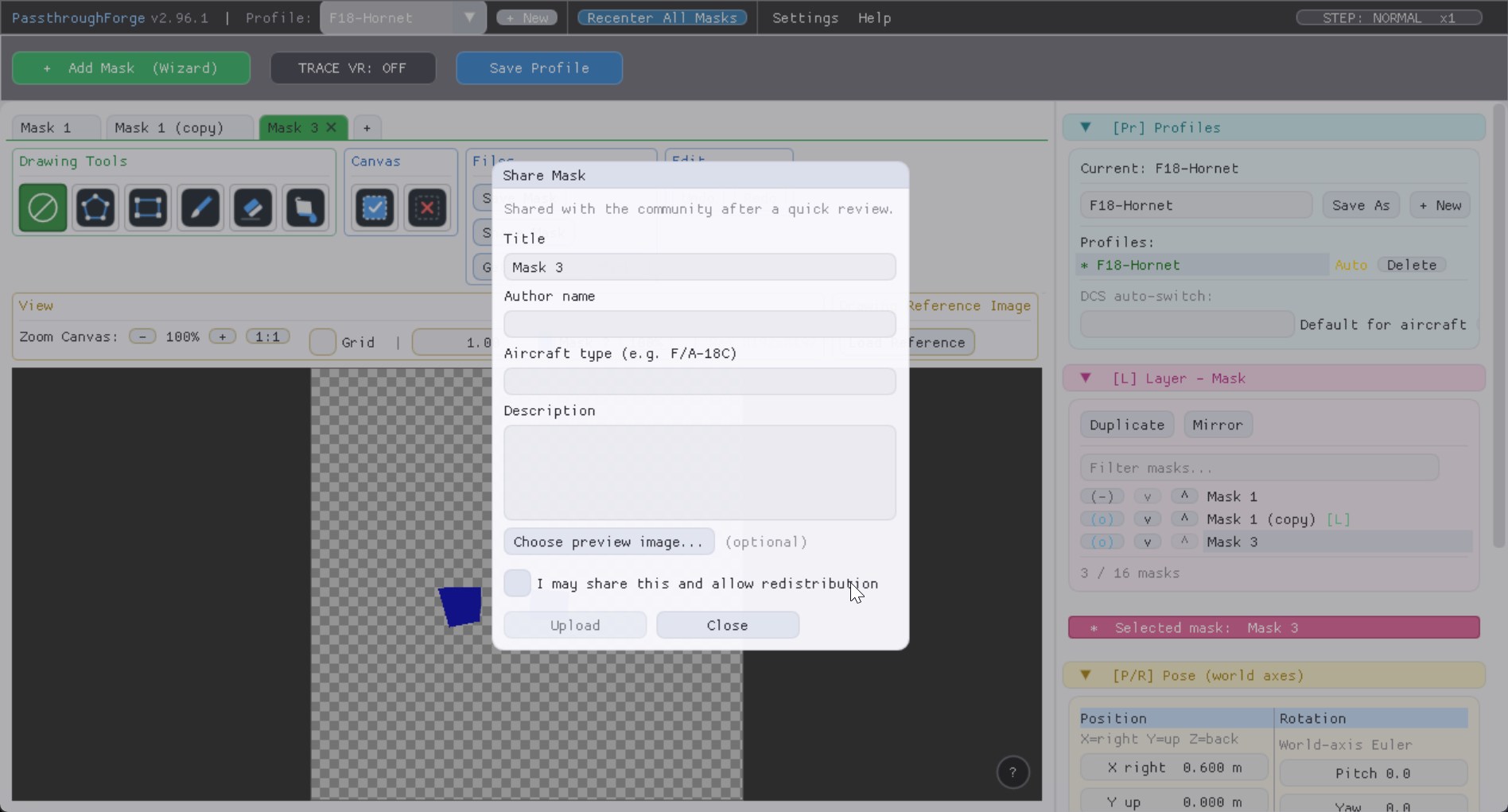
You don't have to build every cutout from scratch any more. Straight from the editor's Files card you can share a mask you made and import masks other pilots have shared.

  • Share a mask — upload a drawn or image mask with a title, your name, the aircraft type and an optional description and preview (reviewed before it goes public).
  • Browse & import — “Get Community Masks” opens a gallery with preview thumbnails, filter by aircraft, and one-click import straight into a new layer.
  • Sharing and importing need an activated license.
Community Masks gallery with preview thumbnails and an aircraft filter
Feature #13 - Tablet & Phone Notes

Hand-write on your VR kneeboard — with a Wacom, or your iPhone / iPad.

A dedicated Notes (Whiteboard) tab gives you a clean, pressure-sensitive white page floating right where you want it — jot a kneecard, mark up a chart, sketch the recovery pattern, all without ever taking the headset off.

  • Graphics tablet (Wacom / Huion / XP-Pen) — write with your pen at full pressure sensitivity. With OpenTabletDriver + OTD-IPC the pen keeps working even while DCS has focus.
  • Your iPhone / iPad or Android phone as a tablet — no app to install. Enable it under Settings → Tablet / Whiteboard, open the shown address in your phone's browser on the same Wi-Fi, and write with your finger or a stylus — Apple Pencil and S-Pen pressure supported.
  • Eraser mode, clear-page, adjustable ink colour & width, and tap-two-corners calibration.
Feature #14 — Camera Stream

Any USB camera, live in your cockpit.

Point a webcam at your HOTAS, your keyboard, your button boxes — or the whole pit — and stream it straight into a VR mask. It's a real second pair of eyes: position the panel wherever you want and glance at your physical gear without ever touching the headset.

  • Plug & play — works with any standard USB (UVC) webcam. Pick the camera, pick the resolution, done. 1080p–1440p recommended for crisp text on switches.
  • True stereo support — got a side-by-side stereo USB camera? PassthroughForge feeds each eye its own half for real depth, not a flat billboard.
  • Correct colours out of the box — gamma is matched to the VR compositor by default (2.2) and stays adjustable, so the feed doesn't look washed out or crushed.
  • Keeps running in the background — the feed stays smooth while DCS has focus and PassthroughForge sits minimised in the tray.

Super exciting for headsets without passthrough cameras — like Pimax. Wired PCVR headsets have no camera passthrough at all: an external USB camera plus PassthroughForge is your passthrough — see your HOTAS, keyboard and cockpit without ever lifting the headset.

Feature #15 — Web Browser Masks

Any website on your kneeboard — no browser window needed.

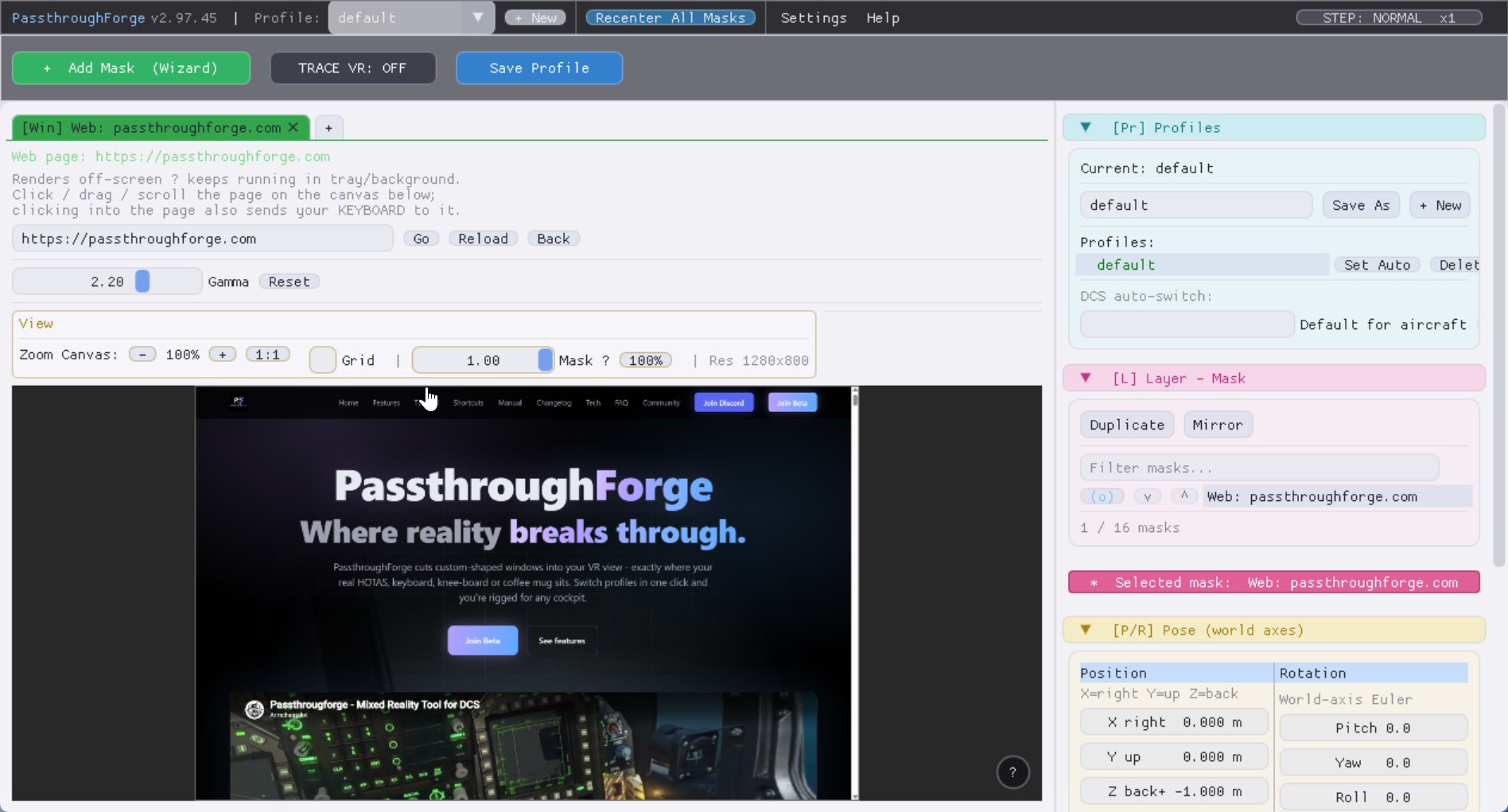
Type a URL, get a live web page floating in your cockpit. SkyVector charts, a YouTube tutorial, your squadron's wiki, a Discord web tab — PassthroughForge runs a full embedded browser engine without any window on your desktop, so it keeps playing and updating even while DCS has focus and PassthroughForge is minimised.

  • Runs in the background — no visible browser window, no focus stealing, no need to keep anything in the foreground. The page just keeps streaming into VR.
  • Fully interactive — click buttons, play videos and scroll pages with your mouse right on the mask preview.
  • Typing mode — click into a text field and your keyboard goes to the page (search boxes, logins, chat); Esc hands it straight back to the sim.
  • Modern engine — built on Microsoft Edge WebView2, the same engine as Edge. Already installed on Windows 11 and most Windows 10 machines.
Web browser mask showing a live website as a floating VR panel

Setup in 60 seconds

Your first mask, step by step:

01

Add a mask

Click + Add Mask and pick the polygon tool.

02

Draw the shape

Click around the area you want to see (HOTAS, keyboard, controls).

03

Place it in 3D

Use sliders or keyboard shortcuts to place the mask over your real gear.

04

Save the profile

Save As "DCS Hornet" - next session everything sits exactly right.

Tutorials - See it in action

Hands-on tutorials covering the most-used workflows - setting up your first masks, binding cutouts to a motion controller, and snapping the whole group back into place after a playspace recenter.

Full setup tutorial

The full step-by-step walkthrough: setting up multiple masks on a real cockpit, in real time. ~6 minutes.

Drawing masks: Subtract mode & mask transparency

The new Add / Subtract draw-mode toggle and the editor-only Mask α slider in action. Subtract turns every painting tool (Brush, Rectangle, Polygon, Fill) into a hole-puncher — filled rectangle outside, Subtract rectangle inside, instant frame in two clicks. Mask α drops the mask to semi-transparent on the canvas so the reference image underneath stays visible while you trace cockpit edges (the VR view stays fully opaque). Shipped in v2.58.

DCS Messages on a virtual kneeboard

The brand-new DCS Messages mask in action: a 9-line, the carrier's BRC, JTAC follow-ups and AI radio calls all stream live onto an A4 kneeboard floating exactly where you want it. Never juggle a notepad mid-merge again.

Automatic DCS mission, briefing & aircraft import

The new DCS auto-kneeboard in action: the DCS hook detects what you're flying and pulls it straight onto a virtual kneeboard in VR — your aircraft kneeboard, the theater pages, the loaded mission's .miz images and the rendered briefing (optionally including enemy SAM / AAA threat locations). All four sit on one mask as a tab strip, switchable mid-flight with a HOTAS button or the keyboard. No headset off, no Alt-Tab, zero per-flight setup.

Keyboard shortcuts walkthrough

The shortcuts that matter for fast mask setup — positioning, rotating, scaling, snapping to view and recentering — demonstrated in one continuous take. Most of these are rebindable in Settings → Mask Shortcuts.

Bind a mask to your controller

Attach a mask to your left or right Quest 3 controller - it follows the controller's pose in full 6DoF. Perfect for moveable charts and kneeboards: pick up an approach plate in your virtual hand, position it where you want, set it down.

What "Recenter All Masks" does

Whenever your VR runtime re-anchors the playspace (Oculus button, proximity sensor, Virtual Desktop reset), your cockpit cutouts end up facing the wrong way. One keystroke (Ctrl+Del) snaps the whole mask group rigidly around your head so it lines up with your forward direction again - relative spacing stays pixel-exact, and your profile data is never modified.

Draw a mask live in VR

No masks yet for your cockpit? Draw them straight on top of your real cockpit. With Trace VR mode the mask quad shows your real-world passthrough and your drawn polygon as a yellow overlay - every point you place lands exactly where you want it, with instant in-headset feedback while you shape the cutout.

Trace a 2D cockpit screenshot

Got a screenshot or photo of your cockpit? Drop it in as a Load Reference, trace your polygon right on top, done. The fastest way to build a clean, precise mask without ever putting the headset on.

Keyboard, mouse & HOTAS shortcuts

Everything you need for fast mask creation, editing, and in-flight adjustment.
For the full list of every action and binding, see the manual.

🎮
Every binding is fully remappable — keyboard, HOTAS, hat-switch.
Open Settings → Mask Shortcuts…, click any binding row, and press the key or push any button on a connected HOTAS / joystick / gamepad. Warthog, Virpil, VKB, Thrustmaster, generic stick — if Windows sees it, PassthroughForge can bind to it. Buttons and hat-switch directions (POV up / down / left / right) are both supported, and bindings stay live in tray mode even when DCS has focus.

MASK TRANSFORM (IN VR)

Move mask X / Y (head-relative)Middle-Mouse Drag
Move mask Z (forward / back)Mouse Wheel
Scale mask (drag vertical)Left + Right Drag
Fine modifierAlt
Coarse modifierShift

EDITOR CANVAS

Zoom canvas (centered on cursor)Ctrl + Wheel
Pan canvas viewCtrl + Middle Drag
Restore default view1:1 button
Toggle Trace VR modeTRACE VR button
Snap mask to current viewCtrl + Delete

POLYGON TOOL

Add pointLeft-click
Context menu (Bezier / Fillet / Delete)Right-click on point
Apply polygonRight-click empty
Remove hovered pointDel
Cancel / clear shapeEsc

MOVE SELECTED MASK

Move right / left (X)Ctrl + Right / Left
Move up / down (Y)Ctrl + Up / Down
Move forward / back (Z)Ctrl + PgUp / PgDn
Scale up / downCtrl + Numpad +/-
Recenter all masksCtrl + Delete

ROTATE SELECTED MASK

Pitch up / downCtrl + Numpad 8 / 2
Yaw left / rightCtrl + Numpad 4 / 6
Roll CW / CCWCtrl + Numpad 9 / 7
Toggle Fine step (x0.1)Q
Toggle Coarse step (x5)E

GLOBAL HOTKEYS (TRAY MODE)

Toggle mask 1..8 visibilityCtrl + F1..F8
Toggle ALL masksCtrl + F9
Show / hide windowCtrl + F12
Show shortcuts cheat sheet in VRSettings menu
Recenter all masksCtrl + Delete
Stream Deck Standard

Run all of this from your Stream Deck.

Drop the included .streamDeckProfile onto the Elgato Stream Deck app and every PassthroughForge shortcut becomes a tactile button. The 15-key Standard layout is organised in folders - Per-Mask Move / Rotate / Scale, plus Global Move / Rotate / Scale and the Recenter / Show-Hide / Q-fine / E-coarse tools on the main page. Icons are colour-coded by axis, identical to the in-VR cheat sheet.

Designed for the Stream Deck Standard (15 keys, 5x3). Folder style with a Back button on every page. Works alongside (not instead of) the keyboard - both sources fire the same hotkeys, so muscle memory carries over.

⬇ Download Stream Deck Profile

More than just masks

Battle-tested features that make the difference.

Global hotkeys mid-flight

Tray mode with low-level keyboard hook. Ctrl+F1 toggles mask 1 even when DCS holds focus and blocks every other tool.

📜

Cheat-sheet floating in VR

Forgot which hotkey does what? One click and your entire keymap appears as a floating 3D panel in front of you.

👀

Gaze activation

Masks appear only when you look at them. Cockpit stays clean, info shows up exactly when you need it.

🧾

Mirror layouts

Cockpit symmetric? Draw one mask, get the mirrored copy automatically generated. Bezier handles included.

Uncompromised performance

Async texture upload, cross-process keyed mutex sync, color anti-bleed. No FPS hit, chroma-key shimmer strongly reduced.

🛡

Profile-clean recenter

Snap to View modifies a global pivot offset, never your mask data. Iterate as much as you want without fear of corrupting the layout.

Under the hood

PassthroughForge is built like a piece of professional software, not a hobby tool. Here's the architecture - and why we made these choices.

OpenXR Layer

At its core, PassthroughForge is a native OpenXR API layer - a DLL that the VR runtime loads directly into your sim's process. It submits its own composition layers alongside the sim's frames, so your masks render at native quality and stay perfectly in sync with the cockpit. No external overlay app, no extra GPU pass.

Why: OpenXR layers are the standardized, low-overhead way to inject content into a VR session. They work with every OpenXR-conformant runtime - Quest, Index, Reverb, Pico - without per-headset workarounds.

SHM IPC

The desktop editor (where you draw masks) and the OpenXR layer (which renders them) live in different processes. They talk over a named shared-memory segment with a Win32 mutex and an explicit version handshake. Mask transforms stream to the layer every frame; updates show up immediately in VR.

Why: Decoupling editor from renderer means the editor can run while the sim is starting, can be minimized to tray, can crash and restart - all without disturbing the in-VR view.

Cross-Process D3D11

Mask textures are uploaded to a DXGI shared D3D11 texture with KEYEDMUTEX. The editor process writes RGBA pixels into a staging buffer, copies to the shared texture under mutex, and the layer process opens the same texture and copies it into the OpenXR swapchain - also under mutex.

Why: Without keyed-mutex sync the layer can read the texture mid-write, producing top-to-bottom build-up artifacts and chroma-key bleed. This was the single biggest fix in v2.26.

Color Anti-Bleed

Virtual Desktop's chroma-key has a tolerance ring around the passthrough color. Photo content with pixels close to that color gets partially keyed and looks washed out. PassthroughForge scans every Document Mask pixel and shifts any RGB inside the ring radially outward so VD never confuses image content with passthrough.

Why: A few-percent shift in shadow tones is imperceptible to the human eye but takes the chroma-key out of the picture. Lets you use any passthrough color without restricting your image content.

Pivot-Based Snap

Snap to View doesn't mutate the mask poses - it stores a pivot point + rotation quaternion that the layer applies on top of every world-anchored quad. Mask data on disk stays exactly as you authored it.

Why: Iterating on a layout becomes risky if every recenter writes back to the profile. Separating session state from saved layout means undo is always one click away, and profiles stay portable across machines.

Low-Level Keyboard Hook

When PassthroughForge is in tray mode, a WH_KEYBOARD_LL hook intercepts keys before any foreground process - including DCS - sees them. Matched shortcuts post a custom message to our window and the keystroke is swallowed.

Why: Many sims use DirectInput / RawInput which bypasses Win32 RegisterHotKey. Without the LL hook your shortcuts would silently fail the moment you put your hands on the controls.

Frequently asked questions

The questions that come up most often in beta testing and Discord. If yours isn't here, write to seidl@xrmacher.com.

TrackingCan I anchor a mask to a controller mounted in my cockpit?

Yes — that's real-time controller tracking. Set a mask's Tracking Target to Real Time Tracking Left / Right Controller and it follows that controller live, recomputed every frame.

It keeps its place when you switch. Position the mask exactly where you want it in World mode first, then switch it to a controller — the mask stays put to the millimetre (it does not jump onto the controller) and tracks from there. Mount the controller rigidly in your cockpit and the cutout is welded to your real hardware.

Motion rigs

On a motion platform a normal world-anchored mask floats off the hardware as soon as the rig pitches. Strap a Quest controller to the rig frame, switch that mask to controller tracking, and the cutout follows every pitch / roll / yaw the platform produces — it stays welded to the real throttle or panel no matter how much the rig moves.

Setup notes. The controller must be ON and you must be in a VR environment; a controller mode can only be picked once the L: and R: status indicators are GREEN. In Virtual Desktop, set INPUT → "Automatically hide controllers" OFF and STREAMING → "Forward tracking data to PC" ON. A mounted controller goes to standby after ~30 s of stillness (normal Quest behaviour) — just tap it once and tracking snaps back; keep it where the headset cameras can see it. Full walkthrough in the manual.

PrivacyDoes PassthroughForge send any data online?

No. The OpenXR layer and the editor talk to each other through shared memory on your local machine. The DCS Messages hook uses loopback only (127.0.0.1:31090). The only network traffic ever leaving your PC is the optional beta-signup form and the manual update check — both initiated by you.

CompatibilityDoes PassthroughForge work without Virtual Desktop?

The chroma-key passthrough trick is what Virtual Desktop, ALVR and certain Pico builds offer for Quest headsets. Native PCVR headsets without a passthrough camera (Reverb G2, Index, Pimax) can't show real cockpit through a chroma-key cutout — they have nothing to "show through." Document masks, Window Capture and DCS Messages still work for those headsets, they just appear on a black background instead of passthrough.

MultiplayerWill the DCS hook get me kicked from MP servers?

DCS treats anything in Scripts\Hooks\ as a client-side mod. Most servers don't enforce strict integrity checks against this folder, but some do. If a strict-IC server flags you, just remove %USERPROFILE%\Saved Games\DCS\Scripts\Hooks\PassthroughForge.lua for that session — PassthroughForge keeps working, you just won't see the message panel update. Drop it back in afterwards.

PerformanceWhat's the GPU / CPU cost?

The OpenXR layer composites a handful of textured quads into the existing swapchain — a few microseconds of GPU time per frame, no measurable CPU load. The editor itself is idle when minimised to tray. Window Capture is the only feature with a noticeable cost: each captured window readback is a few MB/frame at the configured refresh rate (default 30 Hz). Capping it lower for static charts costs nothing.

ProfilesCan I share profiles with friends?

Yes. Profiles are plain JSON files in %APPDATA%\PassthroughForge\profiles\. Send the file, the recipient drops it in their folder, hits the profile dropdown and the layout loads. Texture pixel data is base64-embedded so there are no missing-asset issues. Document mask page paths are stored absolute though — if your friend doesn't have the same PDF in the same location, they'll need to re-import it.

Built with you, not just for you.

Every feature on this page started as a real-world issue from a real pilot - the gaze flicker, the keyed-mutex fix, the Snap to View math, the controller-tracked overlay for motion rigs. PassthroughForge iterates fast and we listen hard.

“If something feels wrong in the cockpit, tell us. We'd rather ship five small versions a week that fix what's actually annoying you than one big version that misses the point.”

Drop a bug report, a feature request, a screenshot of your setup, or a 30-second screen recording of "this isn't working how I want" - we read all of it and most of it ends up in the next build.

Join the Open Beta

We still have a few spots open in the PassthroughForge open beta. If you like what you see, leave your email below and we'll send you the build, update notes and setup tutorials as they're released.

No advertising. No spam. Only software-related information.

🔐  If Windows warns you on first launch

The Setup installer is not yet code-signed (a proper signing certificate is coming soon). Modern Windows therefore shows one or two generic “unknown publisher” warnings on first install. The build is clean — independently scanned by all common AV engines (0 / 62 detections).

Verify the installer on your machine (optional):

SHA-256 = 380F159A6D222091DCF14DE3F5AF4C39C6A0DBF6392641998964633AE9C9C7B4
PowerShell: Get-FileHash .\SetupPassthroughForge-v2.97.63.exe -Algorithm SHA256

What you may see and what to click:

  1. Browser says “this file is not commonly downloaded”: click Keep / Behalten.
  2. Blue full-screen “Windows protected your PC” when you launch the installer: click More info / Weitere InformationenRun anyway / Trotzdem ausführen.

After “Run anyway” the installer wizard opens normally. Still stuck? Ping us on Discord and we'll help.