DCS (or another VR app) has to be running so the controller is tracked and the kneeboard has pages to show. You add and bind the mask at the desktop (steps 1–3), but the alignment (step 4: Reset offset + Face me) you do with the headset on and the controller in your hand — that's the only way to see the kneeboard land where you want it.
Add a mask with the Kneeboard function
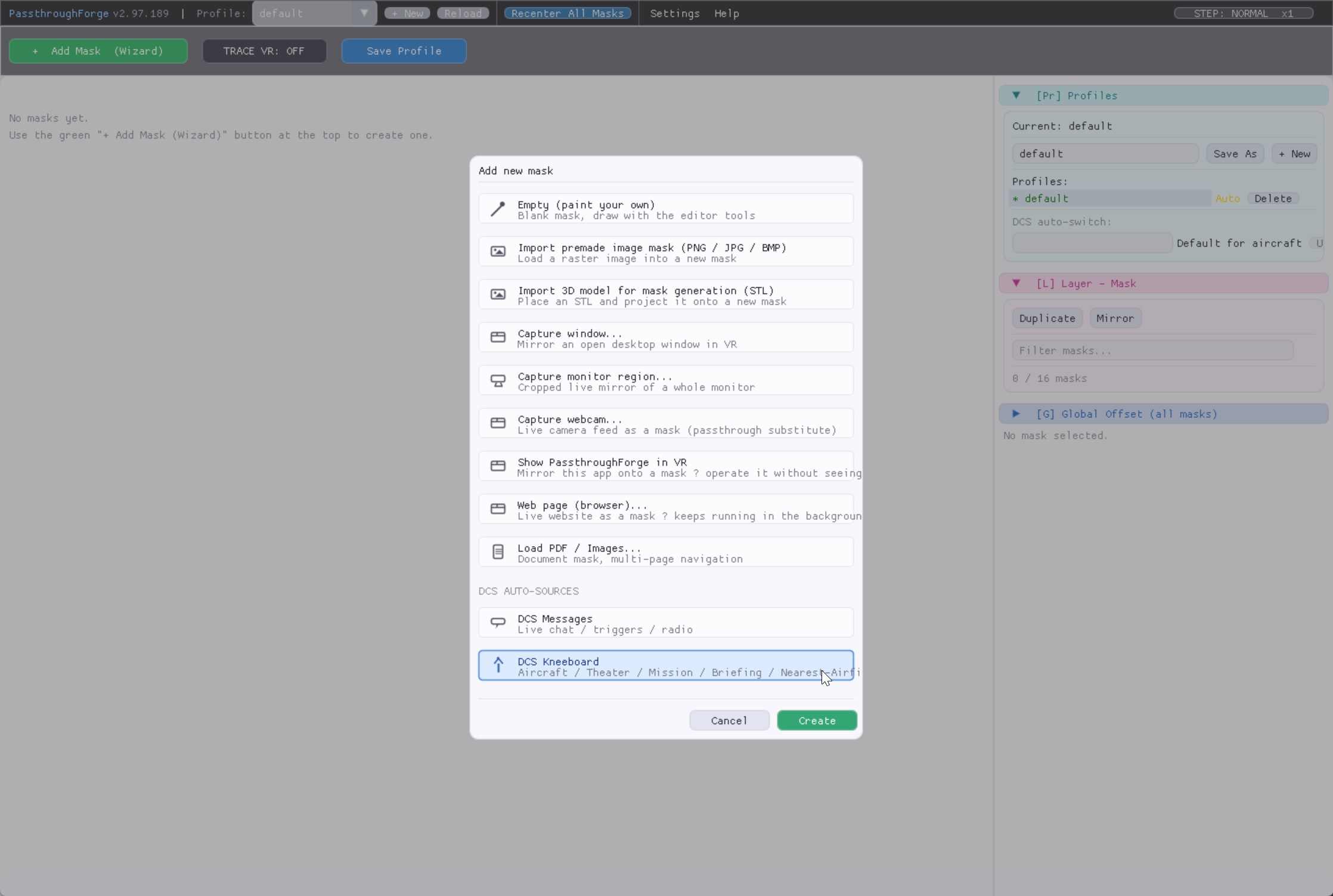
🖥️ At your PCCreate a new mask and set its content type to DCS Kneeboard. Instead of a drawn cutout, this mask streams your in-game kneeboard pages onto the surface. We'll cover the kneeboard's own functions — the different pages it can show (aircraft, theater, mission, briefing, nearest airfield) — in detail in the next guide.
- Open the mask list and click Add mask.
- Set the type / function to DCS Kneeboard.
- The kneeboard now appears both in the 2D canvas on your desktop and in VR.
Bind it to the controller you'll hold
🖥️ At your PCAssigning a controller only works while you are in DCS or any other VR application - controller poses reach PassthroughForge only through the active VR session. Start the sim, put the headset on once so the session is live, then do this step at your PC.
Select the kneeboard mask, open the [T] Tracking section in the right-hand panel and set Tracking Target to the hand you'll actually hold it in:
Real Time Tracking Left Controller or Real Time Tracking Right Controller
The mask does not jump - it stays exactly where it sits and starts tracking that controller from there. (PassthroughForge auto-ticks the two mode boxes for the rig-mounted workflow; in the next step we deliberately switch them back off, because we want a live kneeboard, not a world-locked one.)
![The [T] Tracking section with the Tracking Target dropdown open on Real Time Tracking Right Controller.](screenshots/kb-tracking-target.jpg)
Switch off auto-freeze & release-to-world
🖥️ At your PCThis is the one step that makes it a live kneeboard. Two checkboxes in the [T] section decide whether the mask stays glued to the controller or parks itself to the world - and for a hand-held kneeboard both must be OFF (they are on by default when you pick a controller, so you have to un-tick them):
| Checkbox | Set it to | Why |
|---|---|---|
| Auto-freeze when idle | ☐ OFF | On, the mask freezes to a world anchor the moment the controller holds still. Off, it keeps following - so the kneeboard never "sticks" in mid-air when your hand pauses. |
| Release to world after placing | ☐ OFF | On, the mask detaches and world-locks for good. Off, it never releases and tracks the controller for the whole session - exactly what a hand-held kneeboard needs. |
With both off, the Mode: line at the top of the [T] section reads Tracked - following (live) - the mask is now glued to the controller in real time.
![[T] Tracking panel with both Auto-freeze when idle and Release to world after placing un-ticked; the Mode line reads Tracked - following (live).](screenshots/kb-live-unticked.jpg)
Align it in your hand: Reset offset + Face me
🥽 In VRDo this with the headset on so you can watch the kneeboard land in your hand. Hold the controller in a comfortable reading position, then align it with the two buttons in the [T] Tracking menu — that's the only place the alignment lives:
- Press Reset offset - this snaps the kneeboard onto the controller and clears any stored offset, so the surface sits right at your hand instead of floating off somewhere.
- Press Face me - this turns the kneeboard to face you, so you're looking straight at the pages rather than at an edge.
Watch it as you press each one: the kneeboard snaps onto the controller and turns to face you, right there in your hand. Fine-tune the exact spot with the nudge shortcuts if you like, then press Reset offset once more to lock that feel in.
![[T] Tracking section highlighting the Reset offset and Face me buttons.](screenshots/kb-reset-faceme.jpg)
Use it: grab, read, set down
🥽 In VRThat's it - in the headset the kneeboard now lives on the controller. Pick the controller up when you need a chart, angle it to your eyeline, read it, and lower your hand to stow it out of the way. It tracks your hand the whole time. Press Play below and drag to rotate the 3D view: