PassthroughForge normally cuts its windows into reality through Virtual Desktop's chroma-key passthrough. But not every setup has that path: Pimax headsets have no VD keying, wired-link users skip VD entirely. The Capture webcam mask closes that gap with plain hardware: any USB camera becomes a live window into the real world, placed and shaped like every other mask. Below: how to set it up, what every control does — and why Head-Lock might be the most interesting toggle in the whole panel.
- PassthroughForge v2.97.320 or newer (native MJPEG pipeline, Head-Lock, stereo tuning, cover gesture, hotplug)
- Any USB (UVC) webcam — a cheap 1080p cam works; a wide-angle or stereo (side-by-side) camera is even nicer
- A way to mount it: on the desk looking at your hands, or on the headset itself
Why a camera mask?
A Camera Feed mask is a normal PassthroughForge mask — world-locked, resizable, profile-saved — whose pixels come from a live camera instead of a drawing or a window capture. That makes it the universal passthrough substitute:
- Pimax & friends: no Virtual Desktop chroma-key? The camera path works on every OpenXR headset — what the lens sees is what your mask shows.
- See exactly what you need: point the camera at your HOTAS, your button boxes, your kneeboard — and place that window right where it helps.
- One stream, many windows: the per-mask crop region lets several masks show different parts of a single camera — a front panel here, a side console there.
Create the mask
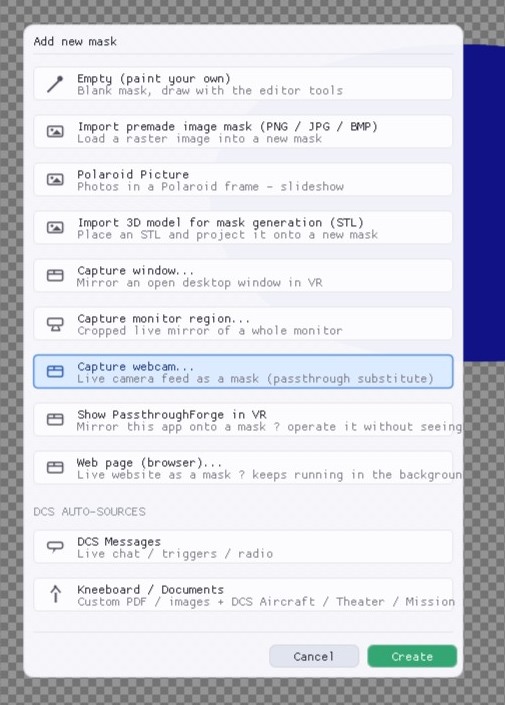
- Click Add Mask (Wizard) and pick Capture webcam… — “Live camera feed as a mask (passthrough substitute)”.
- The mask connects to your default camera within a second or two; the live picture shows on the canvas.
- Place and size it in VR like any other mask (see the Getting Started guide).
Camera & resolution
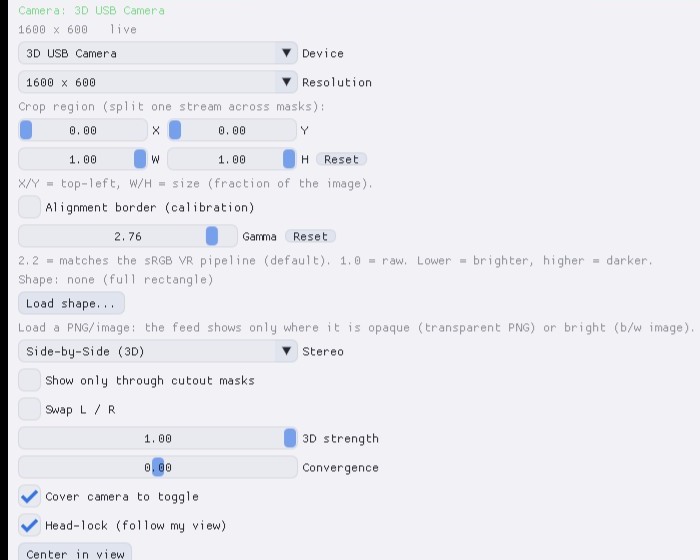
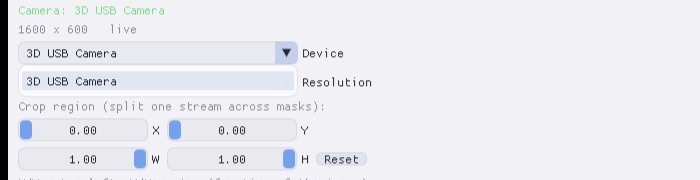
Device lists every connected camera — pick the one you mounted. Your choice is saved with the profile and re-opened on every launch.
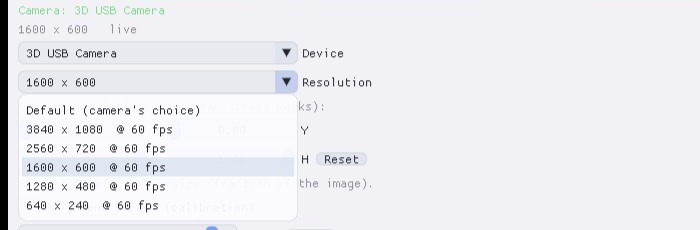
Resolution lists the camera's own native modes with their frame rates — what the hardware can actually deliver, not wishful thinking:
Dial the picture in
- Gamma — cameras vary; VR expects sRGB. 2.2 is the correct default for the VR pipeline; if the feed looks too dark or washed out in the headset, nudge it (lower = brighter). The slider works live.
- Crop region — X/Y set the top-left corner, W/H the size (as fractions of the image). Several masks can share one camera and each show a different crop: split a single wide-angle view into a front window and angled side windows.
- Alignment border (calibration) — draws a bright frame around this mask’s image in VR. Turn it on for several camera masks and line the frames up edge-to-edge to compose one continuous picture.
- Load shape… — clip the feed to any PNG shape (round porthole, cockpit cut-out): the feed only shows where the shape is opaque.
Head-Lock — the Pimax star
Every mask is normally world-locked: it sits at a fixed spot in your cockpit, which is exactly right for panels and kneeboards. But a reality window often wants the opposite: you want it with you — glance down anywhere, see your hands, no matter where you’re looking. That's Head-lock (follow my view): the camera window rides along in your view like a HUD element.
Try both modes yourself — drag inside the scene to look around:
World-locked: the window stays glued to its spot in the cockpit — look away and it leaves your view. Head-locked: the window travels with your gaze — the real world is always one glance away. That’s the difference in one drag.
Why this matters most on Pimax: with no chroma-key passthrough, the camera window is your only connection to the real cockpit. Head-locked, it behaves like the passthrough porthole you’re missing — always in the same corner of your view, wherever the dogfight takes your head.

Stereo 3D cameras
Got a stereo (side-by-side) camera? Set Stereo to Side-by-Side (3D) and PassthroughForge shows each eye its own half — real depth, like looking through a window rather than at a photo. Two sliders tune the effect:
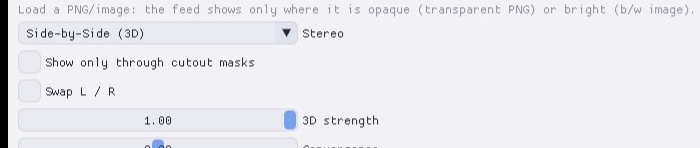
- 3D strength — 1.00 = the camera’s full native depth, 0.00 = flat (both eyes identical, easiest on the eyes).
- Convergence — slides the two half-images toward each other: this sets where the depth sits. If you see double or feel eye strain, move this slider until the image fuses comfortably. This is the comfort knob — use it first.
- Swap L / R — if depth feels “inside out”, your camera delivers the eyes in the other order; one click fixes it.
- Side-by-Side → single eye — prefer a flat, undistorted mono picture from a stereo cam? This mode shows just one half to both eyes.
The cover gesture
Enable Cover camera to toggle and the lens becomes its own switch: put your hand over the camera for about 1.5 seconds — the feed fades out. Cover it again — it fades back in. No keybind, no controller, hands never leave the cockpit.
Good to know
- Frame-damage guards: corrupted USB frames (the classic black or green flashes of overloaded MJPEG cams) are detected and dropped — you keep the last good picture instead of seeing garbage.
- Background-smooth: the feed stays fluid in VR even with PassthroughForge minimised to the tray.
- Per-camera settings: device + resolution live in the profile; gamma is applied per camera; crop/stereo/head-lock are per mask.
- Headset-mounted cameras pair beautifully with Head-Lock — the window then shows whatever is in front of your face, porthole-style.