Most in-VR "browser" setups need a real browser window somewhere on your desktop: you have to open it before the flight, park it where a capture can see it, and hope the sim doesn't cover it. The Web page (browser) mask skips all of that. PassthroughForge runs its own built-in browser off-screen and renders the page directly into the mask — there is no window at all. It cannot be covered, it cannot be lost behind the sim, and it works perfectly on a single monitor with DCS taking up the whole screen.
- PassthroughForge v2.97.316 or newer (Browser Mouse; the Web page mask itself is older)
- Microsoft Edge WebView2 runtime (preinstalled on Windows 11 / current Windows 10)
- For the in-VR mouse: any spare key or HOTAS button for the toggle bind
- No second monitor — a single screen with the sim fullscreen on it is the setup this feature was designed around
Why a web page mask?
Both roads lead to a web page in VR — but they behave very differently:
| Web page (browser) mask | Capture Window of a real browser | |
|---|---|---|
| Browser window needed | No — built-in, off-screen | Yes, must be open & arranged before the flight |
| Single monitor + fullscreen sim | Works — nothing to cover | Window hidden behind the sim; capture may still work but you cannot reach it with the mouse |
| Control from inside VR | Yes — Browser Mouse (this guide) | Only if the window is reachable by the real cursor (second monitor) |
| Survives sim start / alt-tab | Yes, completely independent | Depends on window state |
In short: if the page is the destination, use the Web page mask. Capture Window remains the right tool when you want to mirror an application you also use on the desktop.
Create the mask
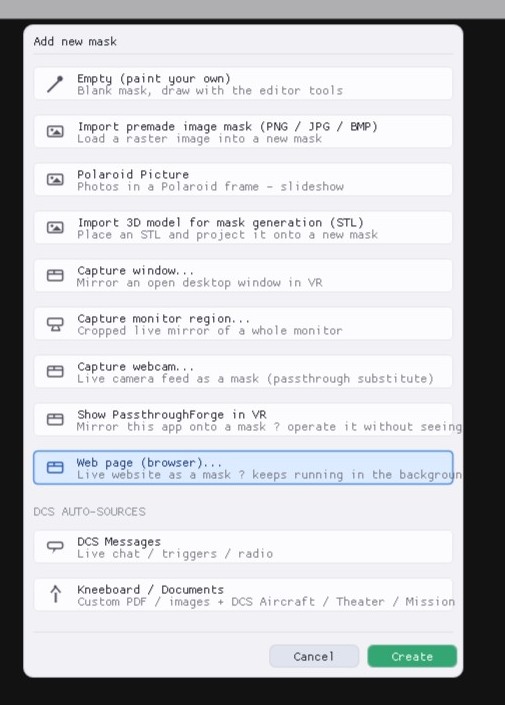
- In PassthroughForge, click Add Mask (Wizard) and pick Web page (browser) as the source.
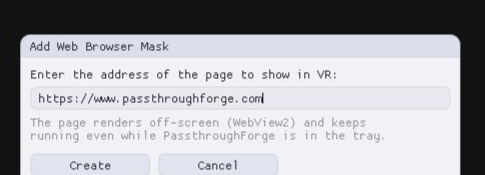
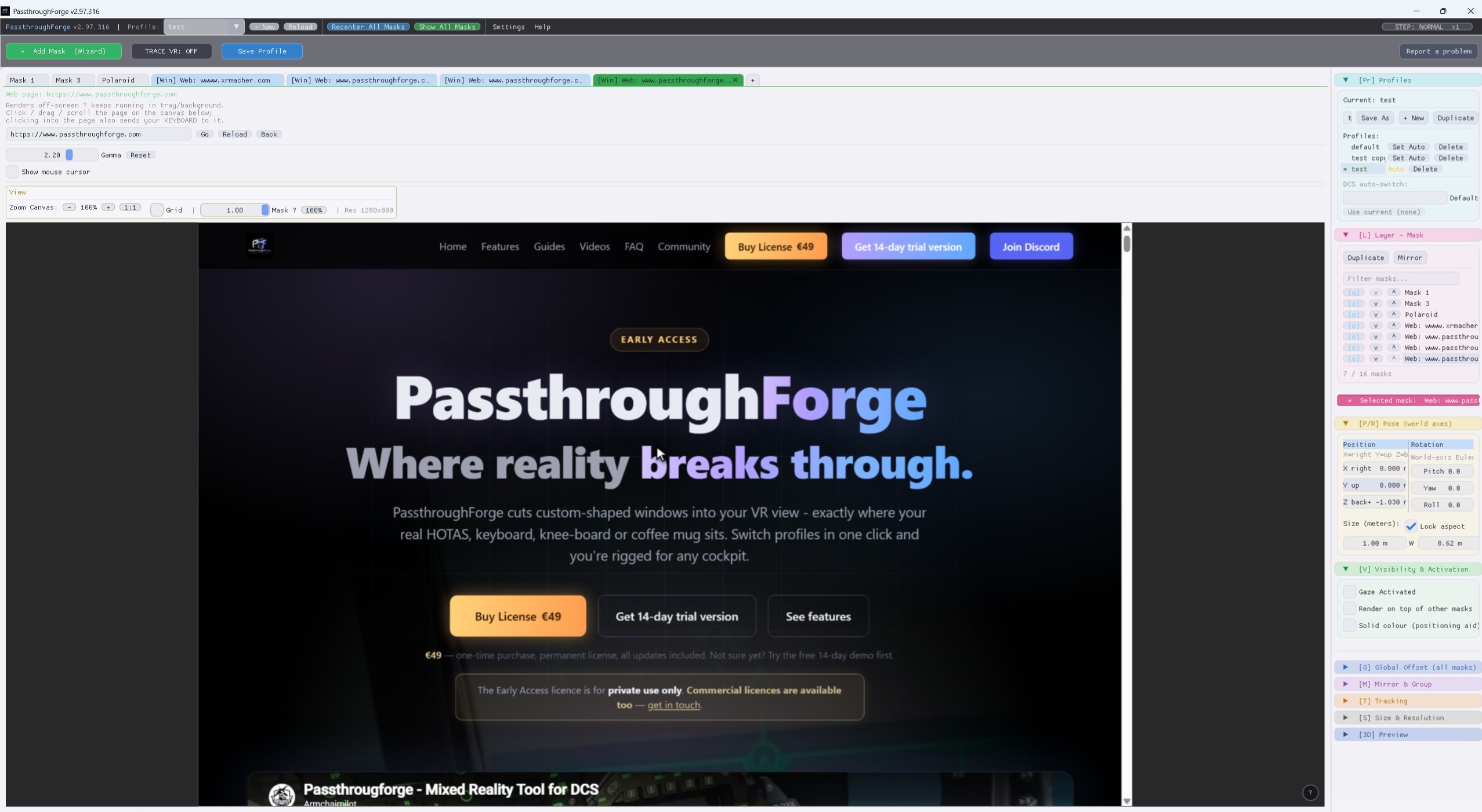
- Enter the URL and click Create. The page loads into the mask within a second or two — you will see it live on the mask canvas.
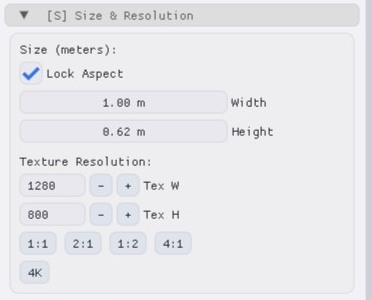
- Want sharper text? The page resolution lives in the right panel under [S] Size & Resolution → Texture Resolution (default 1280×800, with one-click ratio presets and a 4K button). Higher = crisper text, slightly more GPU. 1280×800 is a good start for checklists; go higher for dense maps.
- Position the mask in VR exactly like any other mask — place it with the controller or nudge it with the keyboard shortcuts. New here? The Getting Started guide covers placement.
Using it at the desk
On the desktop, the mask canvas is the page: hover, click, drag and scroll directly on the canvas and it acts on the web page 1:1. Clicking into a text field enters typing mode so you can enter URLs, search terms or log-ins with the keyboard. This is the comfortable way to prepare the page before you put the headset on — open the right checklist, zoom the map, sign in where needed.
Browser Mouse — steer it from inside VR
This is the new part. Once you are in the cockpit, DCS owns the screen and the keyboard — but your physical mouse can still drive the web page:
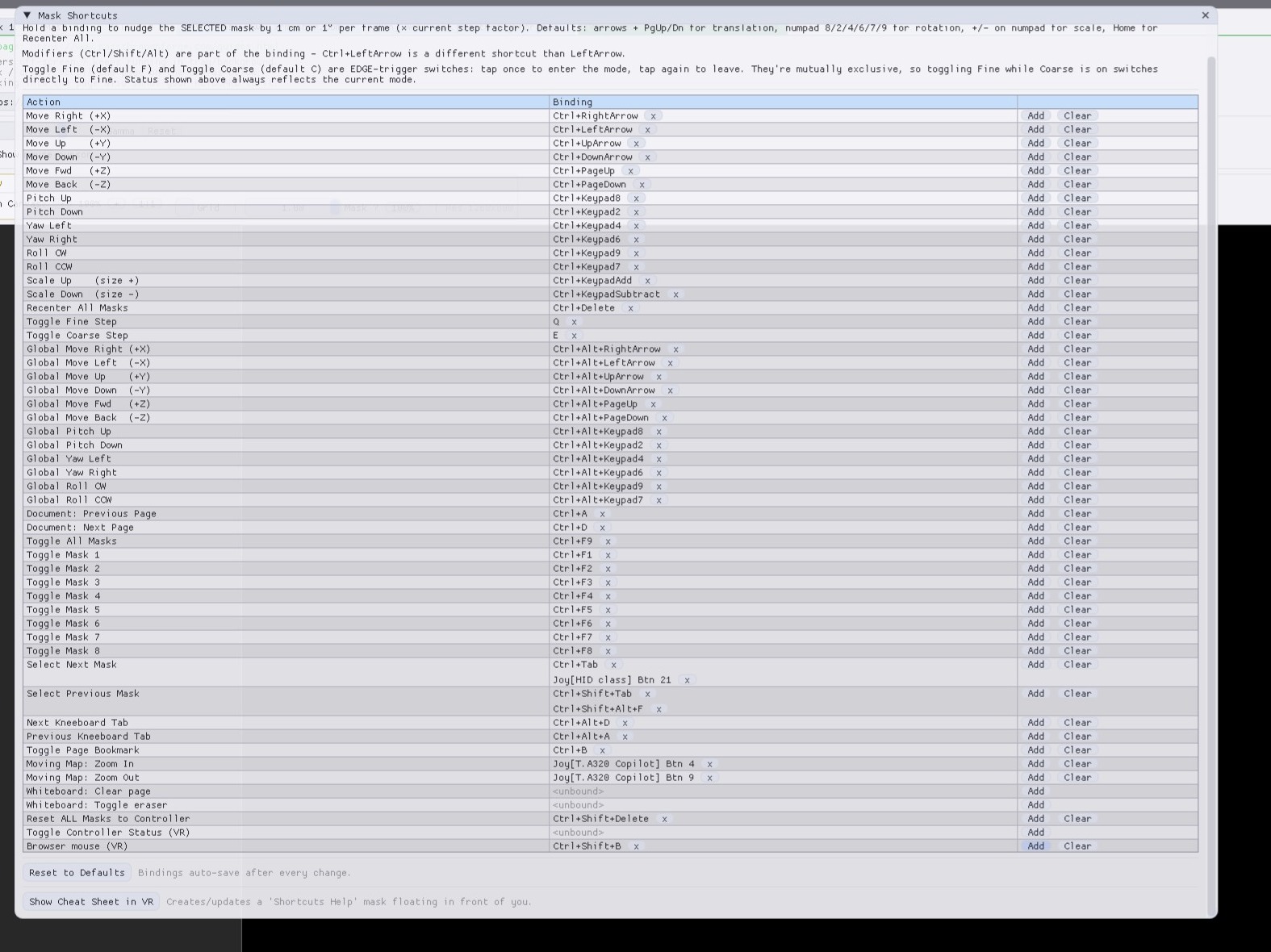
- In Settings → Mask Shortcuts, bind “Browser mouse (VR)” to a key or HOTAS button.
- In VR, press the bind. A white arrow cursor appears centred on the page and a ● VR MOUSE badge lights up in the top-right corner of the mask — that badge is your “the mouse is live” indicator.
- Move your real mouse: the arrow moves on the page — in VR, right where you are looking. Left/right click and the scroll wheel work exactly as you expect: click links and buttons, scroll checklists, zoom web maps at the arrow position, drag to pan.
- Press the bind again: badge off, mouse released. Done.
It does not matter which mask is currently selected — the bind finds your web page mask by itself (if you run several, it prefers the one you used last). And it works with PassthroughForge in the background and DCS in the foreground, exactly where you need it.

The DCS settings that make it seamless
Browser Mouse listens to your mouse — it does not take it away from Windows. While the mode is active, the sim still receives the same mouse input. Two DCS settings make this completely clean:
- OPTIONS → VR → “Use Mouse”: OFF — DCS ignores the mouse entirely and uses head-gaze + bound clicks for the cockpit instead. Your mouse is then exclusively yours for the web page.
- OPTIONS → VR → “Cursor confined to game window”: ON — the (invisible) Windows cursor stays parked inside DCS and can never wander onto another monitor or app.
This is the classic VR gaze-control setup many pilots already fly with — if that is you, there is nothing to change.
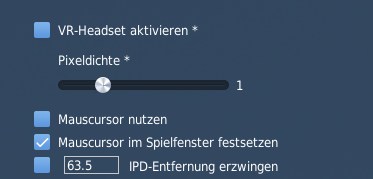
- With “Use Mouse” enabled in DCS, the invisible sim cursor clicks whatever cockpit control it happens to sit on — park it somewhere harmless, or better, use the gaze setup above.
- Even with the gaze setup: if your clickable-cockpit click is bound to the mouse buttons, DCS clicks whatever your gaze rests on — and while you are looking at the web mask, that is the cockpit control behind it. A web button and a cockpit switch at the same spot then fire together.
Two easy outs: bind the sim’s cockpit click to a HOTAS button instead of the mouse, and/or place the web mask over a harmless cockpit area (canopy frame, side panel without switches).
Ideas & limits
What people put on it:
- Interactive checklists and kneeboard-style web tools — tick boxes with a click
- Web maps and mission planning pages — scroll to zoom at the arrow, drag to pan
- Frequency / navdata references, squadron wikis, briefing pages
- Anything with tabs and links you would otherwise print out
Good to know (current version):
- Typing in VR is not supported yet — entering text would steal the sim’s keyboard focus, so it is deliberately blocked. Log in and type what you need at the desk first (step 3); clicking, scrolling and dragging in VR are fully supported.
- The arrow is drawn in the page’s top document — on pages built entirely from embedded iframes it may not show inside the frame (clicks still work).
- One page per mask — and yes, you can run several web page masks side by side.