A kneeboard mask is a document panel that floats in your cockpit. It can hold your own PDFs and images, and — in DCS — the sim's own kneeboard pages, the mission briefing, a moving map and more. Every source becomes a tab along the top of the board, and each tab remembers its own page. Everything works in DCS and MSFS; the DCS-specific sources simply stay unticked if you fly something else.
- PassthroughForge v2.97.344 or newer (multiple named PDF tabs)
- Your documents as PDF files, or as a set of images (PNG / JPG / BMP)
- Optional: a spare HOTAS button or key for paging and tab switching in flight
- Optional, for handwritten notes: a graphics tablet (OpenTabletDriver) or your phone
Create the kneeboard mask
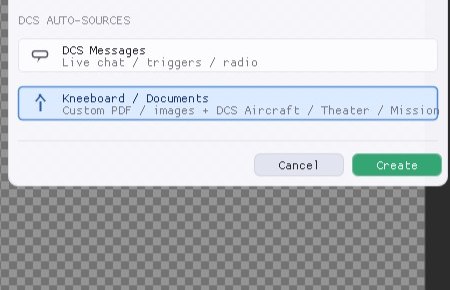
Click + Add Mask (Wizard) at the top left of PassthroughForge and pick the last entry, Kneeboard / Documents. It sits under the DCS auto-sources heading, but that is only where it lives in the list — a kneeboard full of your own PDFs needs no DCS at all and works exactly the same in MSFS.
The new mask appears as a [Doc] tab in the mask bar and spawns in front of you at a readable portrait size. It starts with the DCS Aircraft source ticked; if you don't fly DCS, simply untick it once you have added your own documents.
Load your PDFs as named tabs
In the mask's Kneeboard / Documents panel you'll find the PDF tabs list. Click + Add PDF tab... and pick a document. Repeat for every document you want on the board — up to 8 tabs.
- One PDF per tab. Every page of that PDF becomes a page of the tab.
- Or a set of images: multi-select several PNG/JPG files (Ctrl+click) and they become one tab with one image per page, in alphabetical order.
- Rename it: the text field holds the tab name shown in VR. It starts as the file name — short names read much better on the board ("Approach LOWI" beats "LOWI_RNP26_charts_rev4").
- Reorder with the ▲ / ▼ arrows, remove with X (that only removes the tab — your PDF file is untouched).
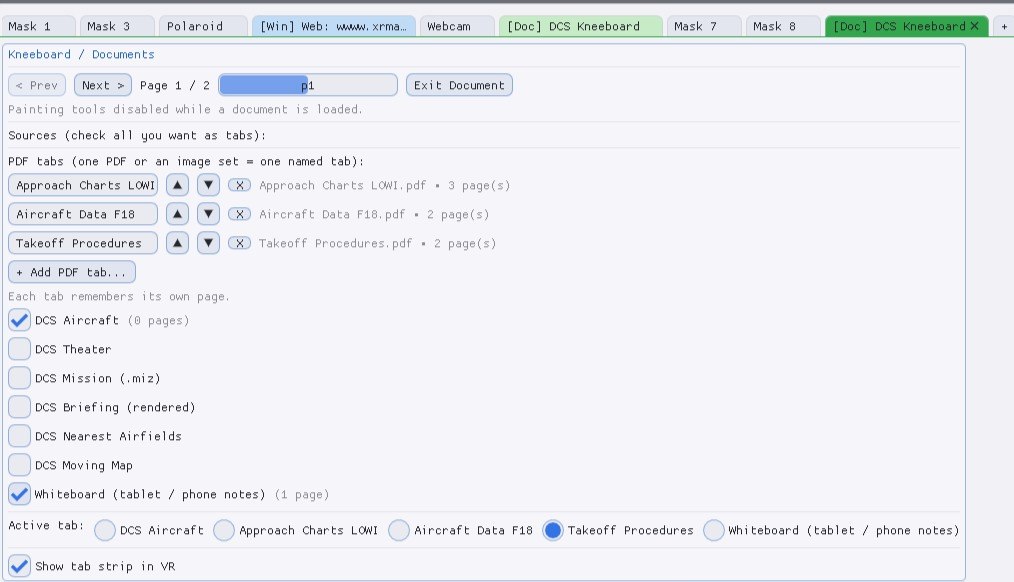
One last step that is easy to forget: press Save Profile. Tabs, names, order and the page you were on are stored with the profile, so the board comes back exactly like this tomorrow.
The DCS sources explained
Below the PDF list sits a row of checkboxes. Each one you tick adds another tab, fed automatically by DCS. They mix freely with your own PDF tabs on the same board.
| Source | What lands on the tab |
|---|---|
| DCS Aircraft | The kneeboard pages DCS ships for the aircraft you are flying — switches by itself when you change slot. |
| DCS Theater | The map's own kneeboard pages (airfield diagrams, charts). |
| DCS Mission (.miz) | The kneeboard images the mission designer packed into the mission file. |
| DCS Briefing (rendered) | The mission briefing, rendered into readable pages — optionally including the enemy threat list. |
| DCS Nearest Airfields | Live text page: the three closest airfields with TACAN, ILS, runway, VOR and elevation. |
| DCS Moving Map | A scrolling terrain map centred on your aircraft, with airfields and range rings. |
| Whiteboard | A blank page you write on — see step 7. |
Paging, tab strip and placement
At the top of the panel you have < Prev / Next >, the page counter and a slider to jump straight to a page — handy while you set the board up at the desk. In flight you use the shortcuts from step 5 instead. Exit Document turns the mask back into a normal painting mask.

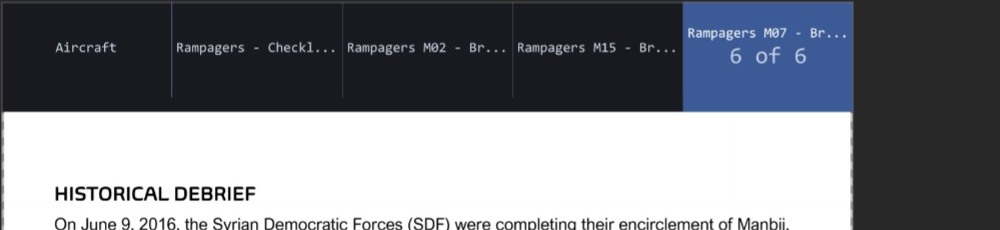
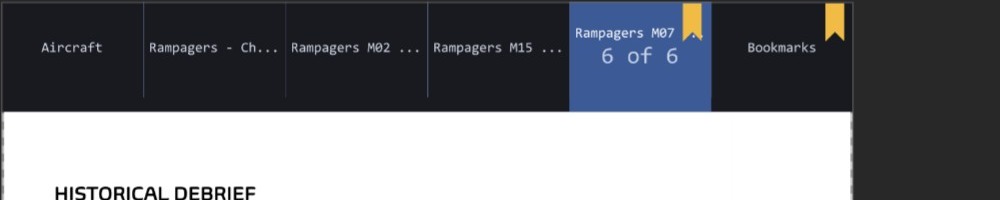
In VR the board draws its own tab strip across the top: the active tab is highlighted and shows "3 of 14" underneath, so you always know where you are. Long tab names are shortened with an ellipsis so they never bleed into each other. You can hide the strip with Show tab strip in VR if you want the maximum page area — the page then fills the whole board and you switch tabs blind, by shortcut.

Placement works like any other mask: drag it on the canvas, or use the [P/R] Pose fields and the move shortcuts. A kneeboard usually wants to sit low and slightly tilted, roughly where a real one sits on your thigh. Size it with Size (meters) — around 0.5 m wide is a good starting point, and the portrait aspect follows automatically.
Shortcuts for the cockpit
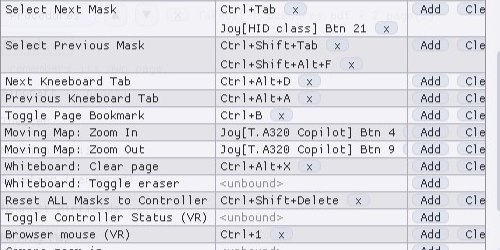
This is what turns the board into a real kneeboard: you never touch the desktop in flight. All of these live in Settings → Mask Shortcuts and can be re-bound to any key or HOTAS button — click Add next to the action and press the button you want.
Bookmarks — your in-flight shortlist
A 30-page checklist has maybe four pages you actually need in the air. Bookmarks pull exactly those together.
- Page to a page you want quick access to.
- Press Toggle Page Bookmark (Ctrl + B).
- A small yellow corner appears on the tab, and a new Bookmarks tab shows up at the end of the strip.
- Repeat across any tabs — approach chart page 2, checklist page 7, aircraft data page 1. They all collect on that one Bookmarks tab.
- Press Ctrl + B again on a bookmarked page to remove it.
Notes — write on your kneeboard
Tick Whiteboard (tablet / phone notes) and the board gets a blank white page as its own tab. This is where ATIS, clearances, headings, tanker frequencies and BDA go — handwritten, in VR, while you fly.
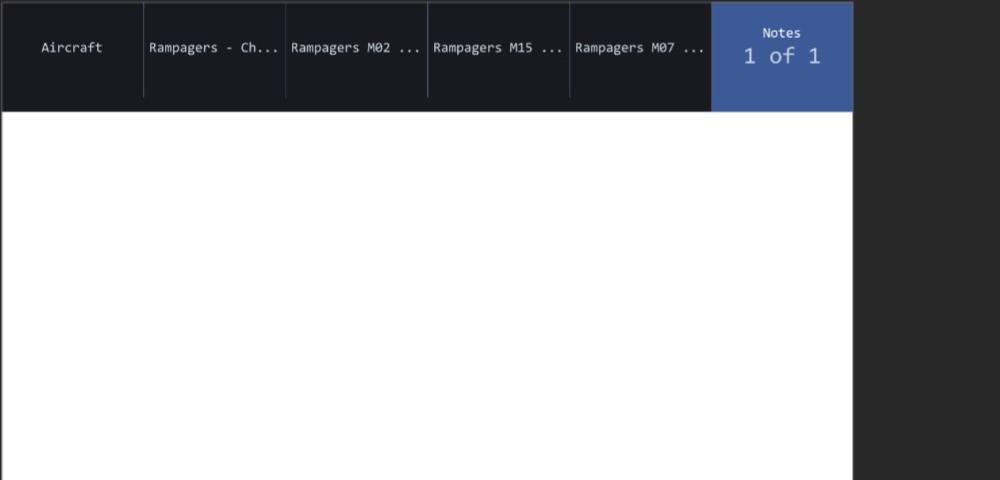
You write on it with one of two input devices — a mouse does not work here, because you cannot see the desk in VR:
- A graphics tablet (Wacom, Huion, XP-Pen …) via OpenTabletDriver. This is the setup that feels like a real kneeboard: the tablet lies on your leg, pen on tablet is pen on page, absolute position and all. Set it up under Settings → Tablet / Whiteboard, then calibrate the two corners once so the tablet area matches the page.
- Your phone over Wi-Fi — open the page PassthroughForge serves, scan the QR code from the settings menu, and write with your finger or a stylus. No driver, no hardware, but less precise than a tablet.
Clear page (Ctrl + Alt + X) wipes it, and the eraser action turns the pen into a rubber — both bindable to your HOTAS.
There is a dedicated, much more detailed guide for the tablet side of this: Write on your VR kneeboard with a graphics tablet.
Tips & limits
- Short tab names win. With five or more tabs the strip gets tight and long names are shortened with "…". "M02 Brief" reads better in the headset than "Rampagers M02 - Briefing".
- Big scanned charts: PDFs are rendered at a fixed kneeboard resolution. Very dense A4 charts read better if you split them into portrait halves before importing.
- Several boards. Nothing stops you from creating two kneeboard masks — charts on the left knee, checklist on the right. Each has its own tabs and its own page memory.
- The tab strip is part of the mask. It is drawn into the page itself, which is why it also shows up on the desktop canvas — that is not a preview overlay, it is exactly what the headset gets.
- Keep the PDFs where they are. The board references the files you picked; if you move or delete them, re-add the tab.